
AI/ML Technical Content Strategist

Generating videos from text or still images is one of the truly incredible and unique applications of Deep Learning technology. From anything we can imagine, whether it is complete fantasy or mundane activity, we can now see what it is with the clacking of a few computer keys.
Video has a sort of magic that images do not, and it imparts a realness that was hard to capture with prior technology, often even with advanced CGI. With image generators, pretty much everything we can think of can also be created, and created better with the application of time and work, with something like Photoshop. In that sense, Video generators are far more versatile, able to create complex changes, motions, and effects on unique subjects in motion rather than static.
In this piece, we want to introduce the newest State of the Art in video generation for open source deep learning models: HunyuanVideo 1.5. This model, released late last week, is on par with closed source models like Wan2.5 and Sora 2 without any of the closed source related issues that may limit use of or access to the model.
With DigitalOcean GPU Droplets, it is easy to run HunyuanVideo 1.5 with the popular ComfyUI and DiffSynth-Studio tools. In this article, we take a look at what makes HunyuanVideo so powerful, and then show how to run the model on DigitalOcean GPU infrastructure. For the demo, we will walk through the steps required for everything to run the model on an NVIDIA H200 powered GPU Droplet using the ComfyUI.
Prerequisites
- access to an NVIDIA GPU Droplet
Key Takeaways
- HunyuanVideo 1.5 is a suite of text-to-video, image-to-video, and video Super Resolution models on par with the best closed source models like Wan2.5 and Sora 2
- With only 8.3 billion parameters, the model is capable of being efficiently run for inference on consumer-grade GPUs
- With DigitalOcean GPU Droplets powered by an NVIDIA H200, we can generate 720p videos in minutes
HunyuanVideo 1.5
HunyuanVideo 1.5 is a lightweight yet robust video generation system that delivers SOTA visual quality and motion coherence using only 8.3 billion parameters, enabling efficient inference on consumer-grade GPUs. Its performance is the result of several key components: rigorous data curation, an advanced DiT architecture incorporating selective and sliding tile attention (SSTA), improved bilingual capability through glyph-aware text encoding, a progressive pre-training and post-training strategy, and a highly efficient video super-resolution module. Together, these elements form a unified framework that supports high-quality text-to-video and image-to-video generation across a wide range of durations and resolutions.
Training
The training of HunyuanVideo 1.5 is defined by two key traits: rigorous data curation and using the Muon optimizer. During Data Acquisition, they prioritized data diversity and quality. They sourced from a variety of video channels, and then optimized the data for training efficiency by segmenting the data into 2-10 second clips. They then filtered their data for visual quality, aesthetics, and basic features like video borders.
To caption the videos they used the same process as HunyuanImage 3.0, involving “(1) a hierarchical schema for structured image description, (2) a compositional synthesis strategy for diverse data augmentation, and (3) specialized agents for factual grounding.” (Source). Together, this creates a robust system for effectively and efficiently captioning each video for subsequent training.
Finally, we get to the actual training. They approached training in 3 stages. They first trained for the text-to-image (t2i) task, at 256p and then 512p. The t2i training allowed the model to learn semantic alignment between text and images. They found that this effectively improves model training by accelerating the convergence and performance of subsequent text to video (t2v) and image to video (i2v) stages.
During pretraining, they utilize a blended training approach that integrates T2I, T2V, and I2V tasks in a 1:6:3 ratio, balancing semantic depth and video-specific modeling. Large-scale T2I datasets are prioritized to enrich the model’s understanding of visual semantics and expand generative diversity, while T2V and I2V tasks ensure robust video-specific capabilities. A structured, multi-stage progression (Stages III to VI in Table 2) is employed, beginning at 256p resolution with 16 fps and gradually escalating to 480p and 720p at 24 fps, with video durations spanning 2 to 10 seconds. This gradual increase in spatiotemporal resolution fosters stable convergence and enhances the model’s ability to produce detailed, coherent video outputs. (Source). For Post-training, they implement a series of intertwined stages of continuing training, reinforcement learning, and supervised fine-tuning applied separately for i2v and t2v tasks. Eventually, these stages lead to the final resultant models of i2v and t2v models.
Architecture
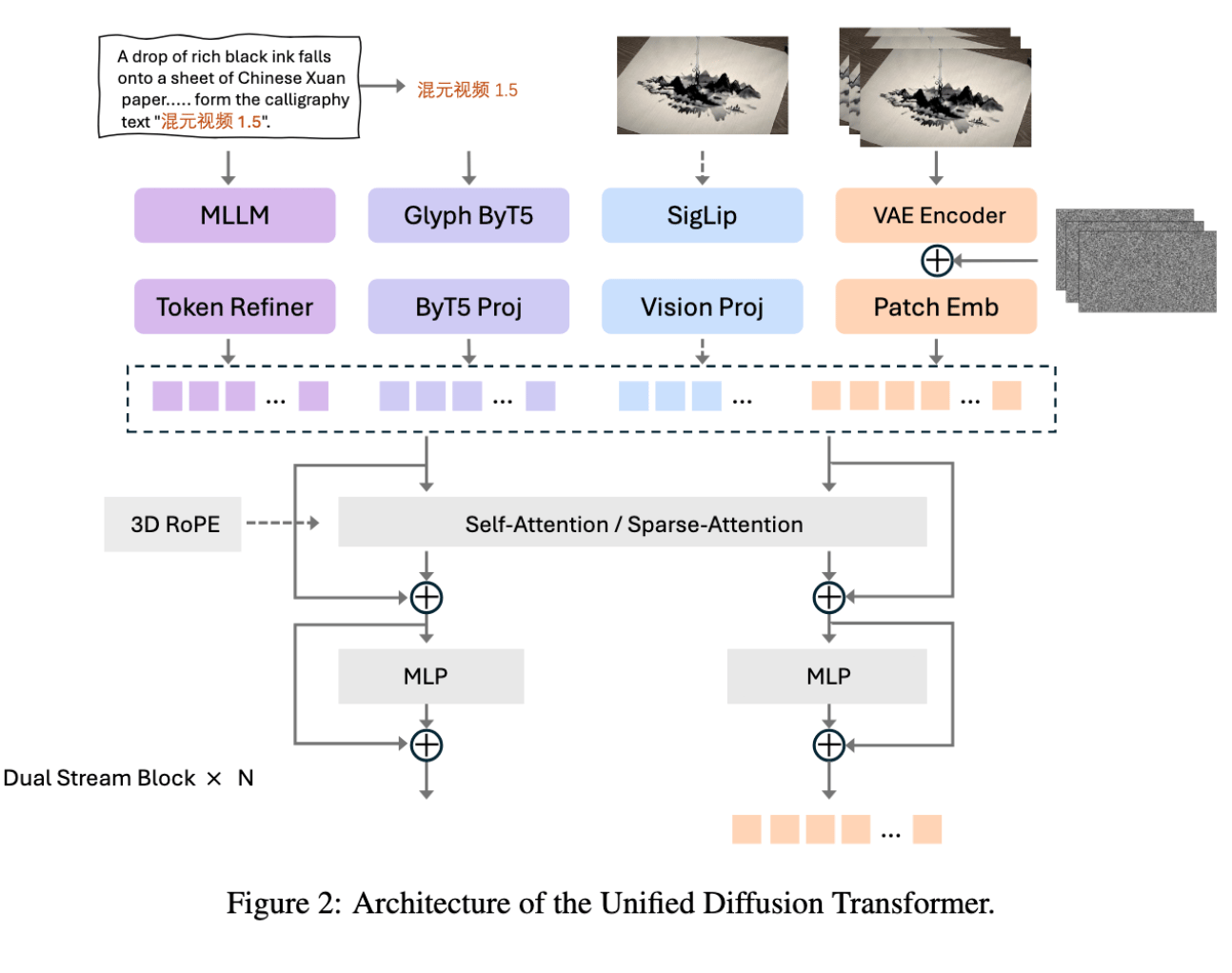
Above we can see the unified Diffusion Transformer Architecture. This outlines the path the model takes to generate an image during inference. For example, “for the I2V task, the reference image is integrated into the model via two complementary strategies: (1) VAE-based encoding, where the image latent is concatenated with the noisy latent along the channel dimension to leverage its exceptional detail reconstruction capacity; and (2) SigLip-based feature extraction, where semantic embeddings are concatenated sequentially to enhance semantic alignment and strengthen instruction adherence in I2V generation. A learnable type embedding is introduced to explicitly distinguish between different types of conditions.” (Source).
The Variational AutoEncoder (VAE) is a “causal 3D transformer architecture designed for joint image-video encoding, which achieves a spatial compression ratio of (16 \times) and a temporal compression ratio of (4 \times), with a latent channel dimension of 32.” The text encoder is a Multimodal LLM (MLLM) leveraging Qwen 2.5 VL as a multimodal encoder. The further integration of Glyph ByT5 strengthens the model’s ability to understand and render text across different languages. Finally, they also use SigLip to align images and text in a shared representation space for tasks such as zero-shot image classification and image-text retrieval.
To handle all of this data across multiple modalities, they use a novel attention mechanism they coin the Selective and Sliding Tile Attention (SSTA). “The SSTA algorithm comprises four key steps: 3D Block Partition, Selective Mask Generation, STA Mask Generation and Block-Sparse Attention. They propose an engineered acceleration toolkit for sparse attention mechanisms, utilizing the ThunderKittens framework to efficiently implement the flex_block_attention algorithm.” (Source).
How to run HunyuanVideo 1.5 on a DigitalOcean GPU Droplet
To get started with running HunyuanVideo 1.5 on a DigitalOcean GPU Droplet, we recommend following this tutorial. It will outline all the steps required to get your GPU Droplet spun up with SSH access, and then discusses how to set up VS Code/Cursor to use the Simple Browser feature to access the ComfyUI (running on your cloud machine’s GPU) in your local browser. We recommend an NVIDIA H200 GPU for this tutorial.
Once you have spun up the GPU Droplet following the tutorial, access it from your local terminal using SSH. Change into the working directory of your choice, and then paste the following code into the terminal. It will clone the ComfyUI repo, download the required models, and run the ComfyUI launch command.
git clone https://github.com/comfyanonymous/ComfyUI
cd ComfyUI
apt install python3-venv python3-pip
python3 -m venv venv
source venv/bin/activate
pip install -r requirements.txt
cd models/clip_vision
wget https://huggingface.co/Comfy-Org/HunyuanVideo_1.5_repackaged/resolve/main/split_files/clip_vision/sigclip_vision_patch14_384.safetensors
cd ../text_encoders
wget https://huggingface.co/Comfy-Org/HunyuanVideo_1.5_repackaged/resolve/main/split_files/text_encoders/byt5_small_glyphxl_fp16.safetensors
wget https://huggingface.co/Comfy-Org/HunyuanVideo_1.5_repackaged/resolve/main/split_files/text_encoders/qwen_2.5_vl_7b.safetensors
cd ../vae
wget https://huggingface.co/Comfy-Org/HunyuanVideo_1.5_repackaged/resolve/main/split_files/vae/hunyuanvideo15_vae_fp16.safetensors
cd ../diffusion_models
wget https://huggingface.co/Comfy-Org/HunyuanVideo_1.5_repackaged/resolve/main/split_files/diffusion_models/hunyuanvideo1.5_720p_t2v_fp16.safetensors
wget https://huggingface.co/Comfy-Org/HunyuanVideo_1.5_repackaged/resolve/main/split_files/diffusion_models/hunyuanvideo1.5_720p_i2v_fp16.safetensors
wget https://huggingface.co/Comfy-Org/HunyuanVideo_1.5_repackaged/resolve/main/split_files/diffusion_models/hunyuanvideo1.5_1080p_sr_distilled_fp16.safetensors
cd ../..
python main.py
Then take the URL output from the terminal, and paste the value into your Simple Browser on VS Code or Cursor. Then click the arrow button in the top right corner to open the ComfyUI in your browser. Then, download the workflow json from the ComfyUI Examples page (or click here), and open it in the ComfyUI (For the Image to Video workflow, click here). If everything worked, you should see something like shown below:
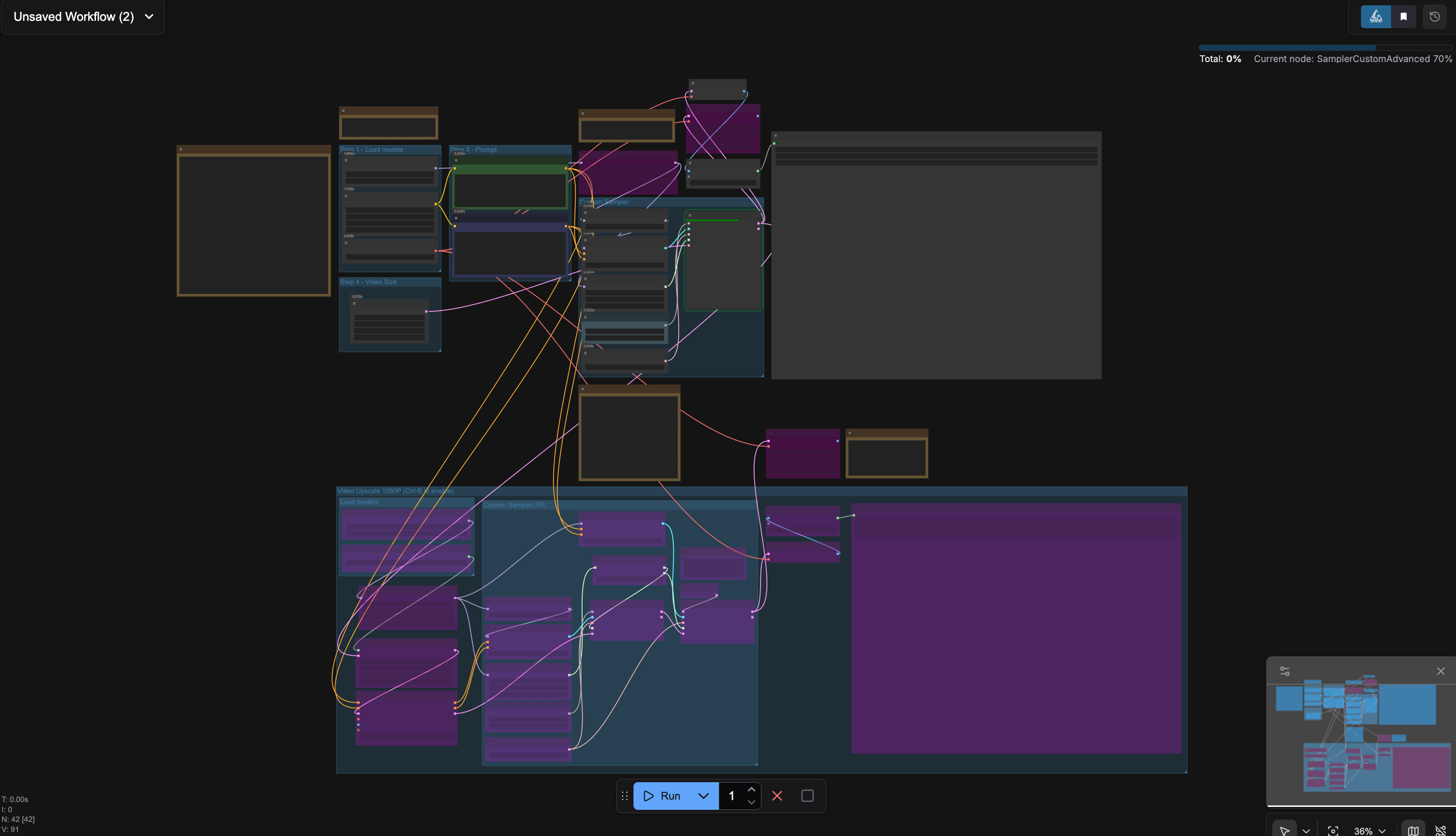
You can now get started generating videos by inputting your prompt. Change the height, width, step count, and number of frames values to make additional changes to the output. This workflow also includes the ability to do Video Super-Resolution upscaling if you “bypass” all the purple blanked out modules in the lower part of the workflow. If you run the workflow, you should get the following video output:
.gif)
As we can see the quality is fantastic, even on this down-scaled gif version of the original. Overall, This is a wonderful model for generating videos in all styles, including 3d, animation, realism, and more. On an H200, it can generate these videos in minutes. We highly recommend using the ComfyUI to generate videos with HunyuanVideo 1.5.
Closing Thoughts
HunyuanVideo 1.5 is a fantastic video model with capabilities that rival models like Sora 2 in pure video generation capabilities. Thanks to the innovative training strategy, we expect future releases to be even more monumental in their impact on the open-source video generation scene. We encourage you all to try this model on DigitalOcean GPU Droplets today!
Thanks for learning with the DigitalOcean Community. Check out our offerings for compute, storage, networking, and managed databases.
About the author
Still looking for an answer?
This textbox defaults to using Markdown to format your answer.
You can type !ref in this text area to quickly search our full set of tutorials, documentation & marketplace offerings and insert the link!
 This work is licensed under a Creative Commons Attribution-NonCommercial- ShareAlike 4.0 International License.
Become a contributor for community
Get paid to write technical tutorials and select a tech-focused charity to receive a matching donation.

DigitalOcean Documentation
Full documentation for every DigitalOcean product.

Resources for startups and AI-native businesses
The Wave has everything you need to know about building a business, from raising funding to marketing your product.
The developer cloud
Scale up as you grow — whether you're running one virtual machine or ten thousand.

Start building today
From GPU-powered inference and Kubernetes to managed databases and storage, get everything you need to build, scale, and deploy intelligent applications.
