What Is NotebookLM? Features and How to Use It in 2026

By Maddy Osman
Senior Content Marketing Manager at DigitalOcean
- Updated:
- 15 min read
NotebookLM first went “viral” because of its ability to generate interesting podcast episodes—but that’s just one of many useful features it offers. If you haven’t used it yet, that’s because it’s the underrated underdog of AI assistant tools. NotebookLM is primarily a research assistant that’s grounded in source data, which helps avoid AI hallucinations in responses. “Simply put, NotebookLM is a tool for understanding things,” says author Steven Johnson, who’s worked on the NotebookLM team since the beginning.
There are many potential applications, from personal use (to help with learning and studying concepts) to professional use (for researching and generating content). Unlike many similar AI tools, the free version is surprisingly robust. Across plans, users have access to generous usage limits, with the paid version expanding access to create more projects (“notebooks”), and integrate more sources. If you’re still wondering, “What is NotebookLM?”, as well as limitations and best practices for using it and the most helpful features to explore—keep reading.
Key takeaways:
- NotebookLM is a source-grounded AI research assistant built by Google and powered by Gemini that uses Retrieval Augmented Generation (RAG) to provide responses backed by web citations.
- Users benefit from reduced hallucinations and the ability to process complex documents through a large context window.
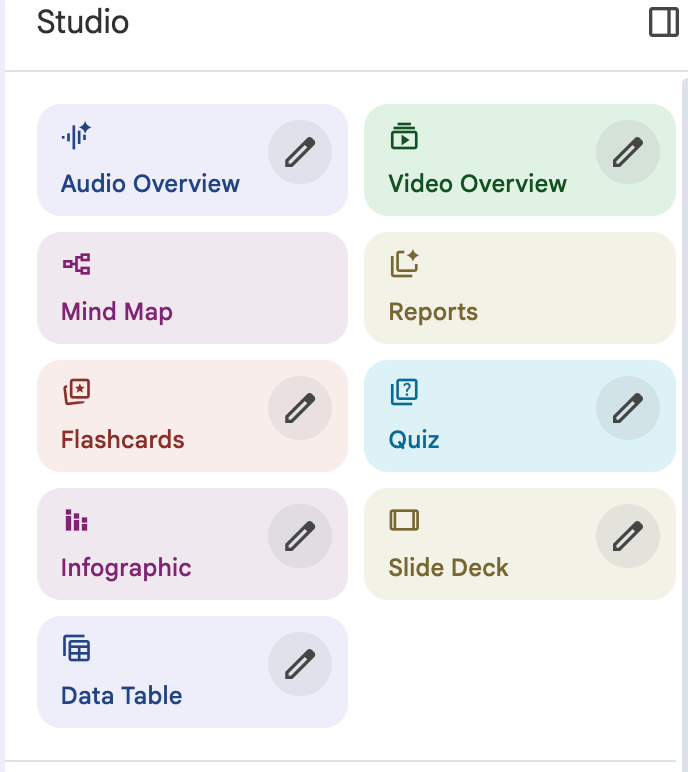
- The Studio panel provides one-click multimedia generation to transform source data into interactive formats like Audio and Video Overviews, Mind Maps, Slide Decks, Infographics, Data Tables, and academic tools such as Quizzes and Flashcards.
- Decision-making criteria for upgrading include the need for higher daily chat limits, expanded notebook storage and sources, or immediate access to advanced features like Deep Research and Audio Overviews.
What is NotebookLM?
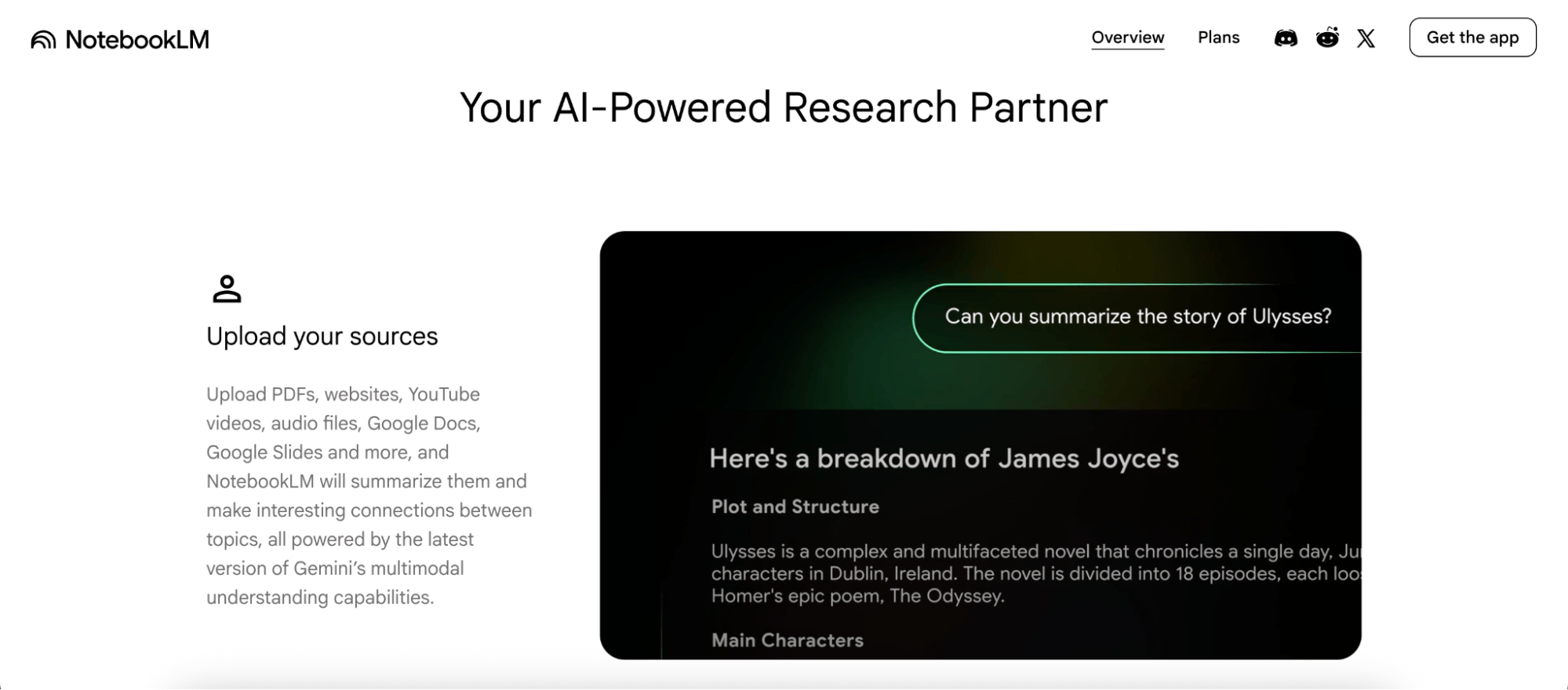
NotebookLM is an AI research tool created by Google that provides responses to queries that include citations grounded in user-provided sources and is powered by the latest Gemini model. It was originally released in 2023 to excitement and experimentation:
The NotebookLM AI assistant is essentially a closed RAG system. You upload your sources, and it generates responses grounded solely in that specific data. This grounded approach reduces the risk of hallucinations. It can also be considered a document summarization AI, as the response involves synthesizing data and concisely answering questions based on the content of provided sources. Sources can include complex documents, with a large context window of up to one million tokens (500,000 words per source).
See how leading AI assistants compare in our guide to Gemini vs. ChatGPT. It breaks down capabilities, context windows, and ideal use cases—helping you understand where a source-grounded tool like NotebookLM fits alongside broader conversational models.
NotebookLM key features:
- Multi-modal source options that include Google Drive (e.g. Docs and Sheets), files (e.g. PDF, DOCX, and CSV), audio/video (e.g. MP3, MP4, and WAV), and images (e.g. GIF, JPG, and PNG), as well as searching the web and Deep Research.
- Studio outputs include the ability to process information as Audio and Video Overviews, Mind Maps, Reports, Flashcards, Quizzes, Infographics, Slide Decks, and Data Tables.
- Accessible across multiple devices, tailored for use via web, iOS, and Android.
NotebookLM plan comparison
The average user will likely find the free plan to be sufficient. For those who require expanded usage limits for certain Studio features (like Audio Overviews, Video Overviews, and Deep Research), as well as the ability to add more than 100 notebooks and more than 50 sources per notebook, consider NotebookLM Plus (via Google AI Plus) and other higher-tier paid plans.
Premium access to NotebookLM isn’t currently available as a standalone subscription, but rather as part of one of Google’s AI plans. Here’s how pricing and usage limits compare:
| Feature | Free | Google AI Plus | Google AI Pro | Google AI Ultra |
|---|---|---|---|---|
| Price (approx.) | $0 | $7.99/mo | $19.99/mo | $249.99/mo |
| Max Notebooks | 100 | 500 | 500 | 1,000+ |
| Sources per Notebook | 50 | 100 | 300 | 600 |
| Daily Chat Queries | 50 | 100 (2x) | 500 (5x) | 5,000 (50x) |
| Audio/Video Overviews | 3 per day | ~6 per day | 20 per day | 200 per day |
| Deep Research Reports | 10 per month | 20 per month | 20 per month | 100+ per month |
| Gemini Model Access | Standard Gemini | Standard Gemini | Gemini Advanced | Gemini Ultra |
| Customization | Standard | Early access features | Custom response styles | Highest priority access |
| Sharing & Security | Standard private | Org-only sharing | Analytics & sharing | No watermarks; VPC-SC |
Google NotebookLM tutorial
Getting started with NotebookLM is straightforward—it runs in your browser or as a mobile app, and you can set up your first notebook in under a minute.
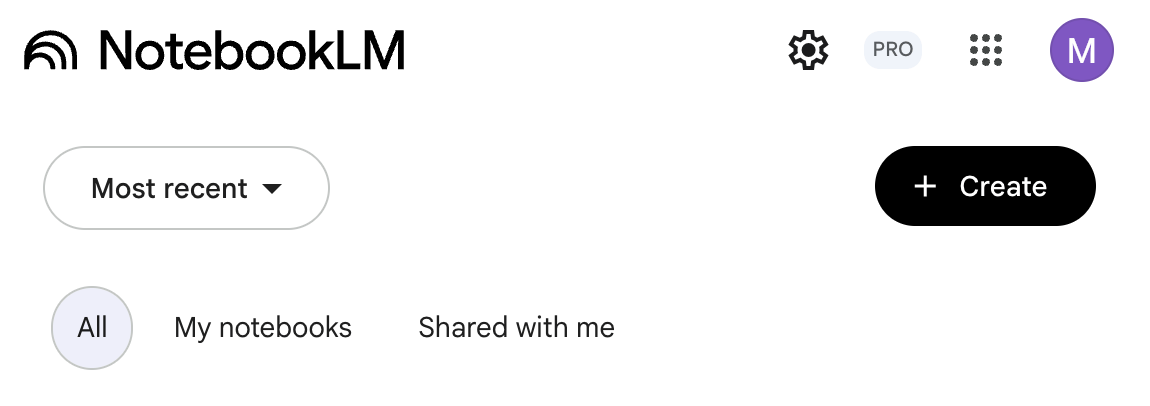
First, navigate to the NotebookLM homepage and click Create to start a new notebook.
Next, add sources. You’ll have the opportunity to add more later if you’d rather skip for now.
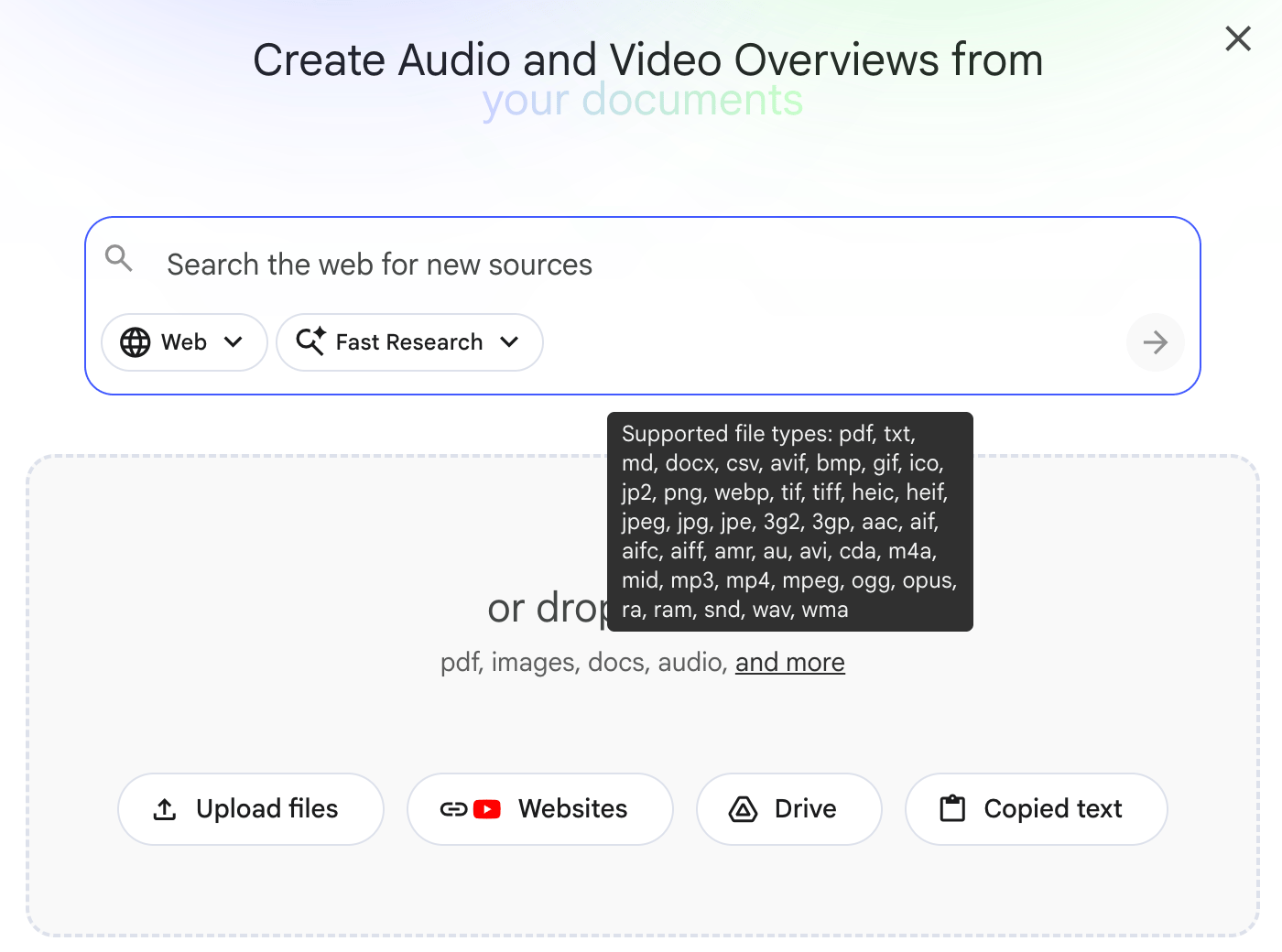
Using NotebookLM starts with uploading the sources it will use to ground the AI assistant tool’s responses. For a market analyst, that might mean uploading earnings reports and competitor filings; for a sociology student, it could be lecture notes and academic journal articles. Based on the volume and type of supported content types, there are many different ways to use NotebookLM for research:
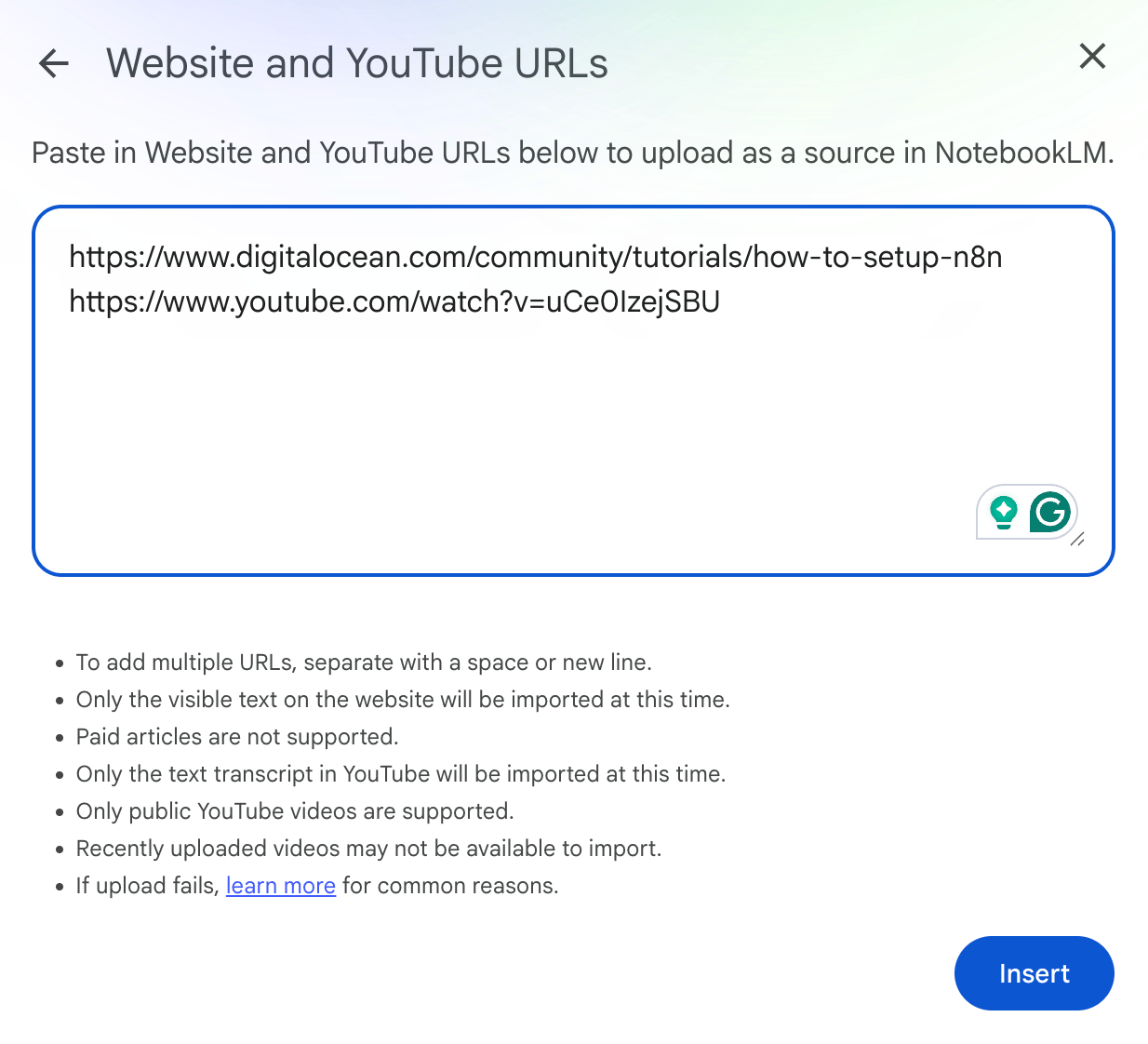
NotebookLM continuously makes updates to support an increasingly wider range of file types. At publication, this includes images (e.g. PNG, JPG, and WEBP), audio (e.g. MP3 and WAV), video (e.g. MP4 and AVI), and various types of documents (e.g. PDF, TXT, DOCX, and CSV).
I added a DigitalOcean tutorial link about how to set up n8n and a companion YouTube video.
After giving the notebook a relevant name, here’s what I see:
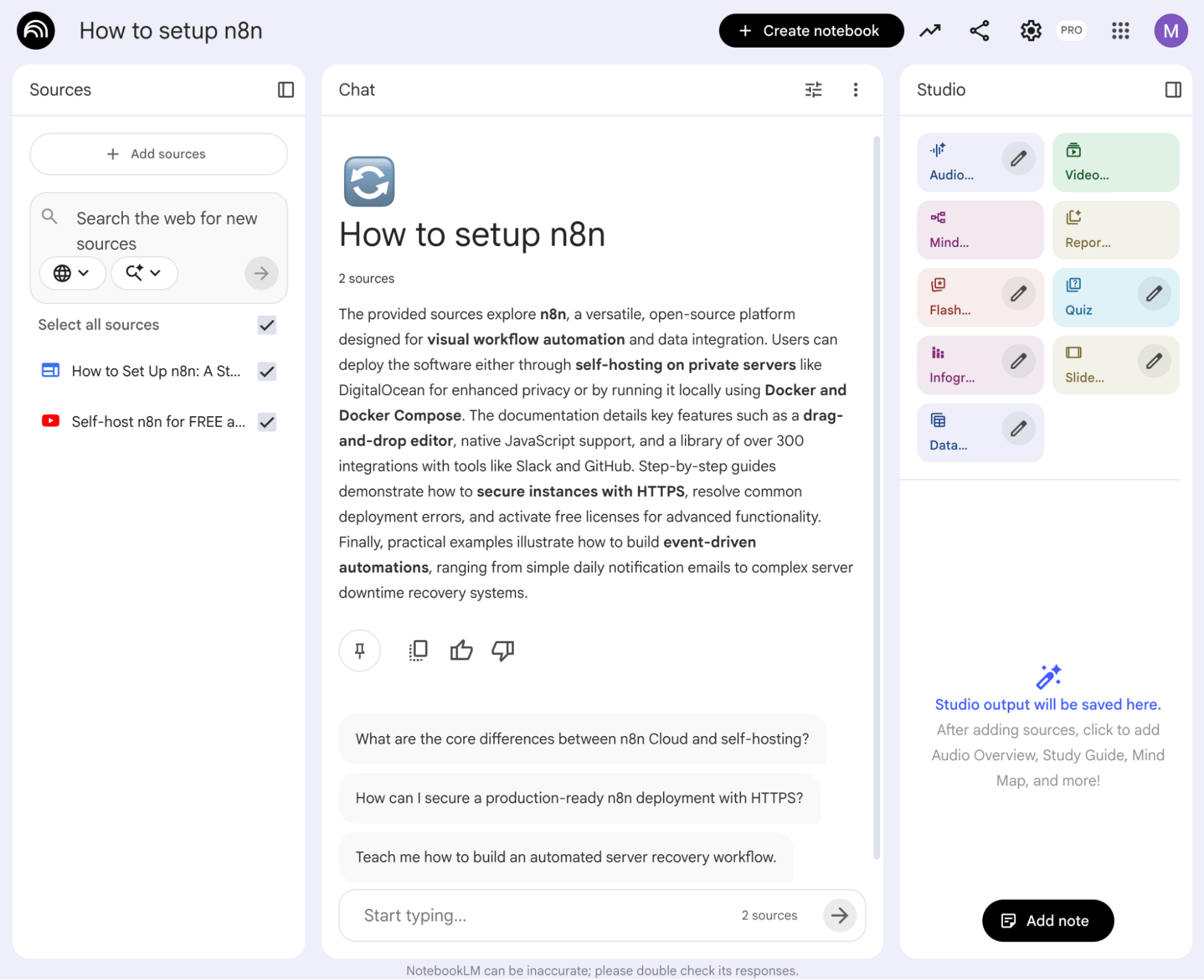
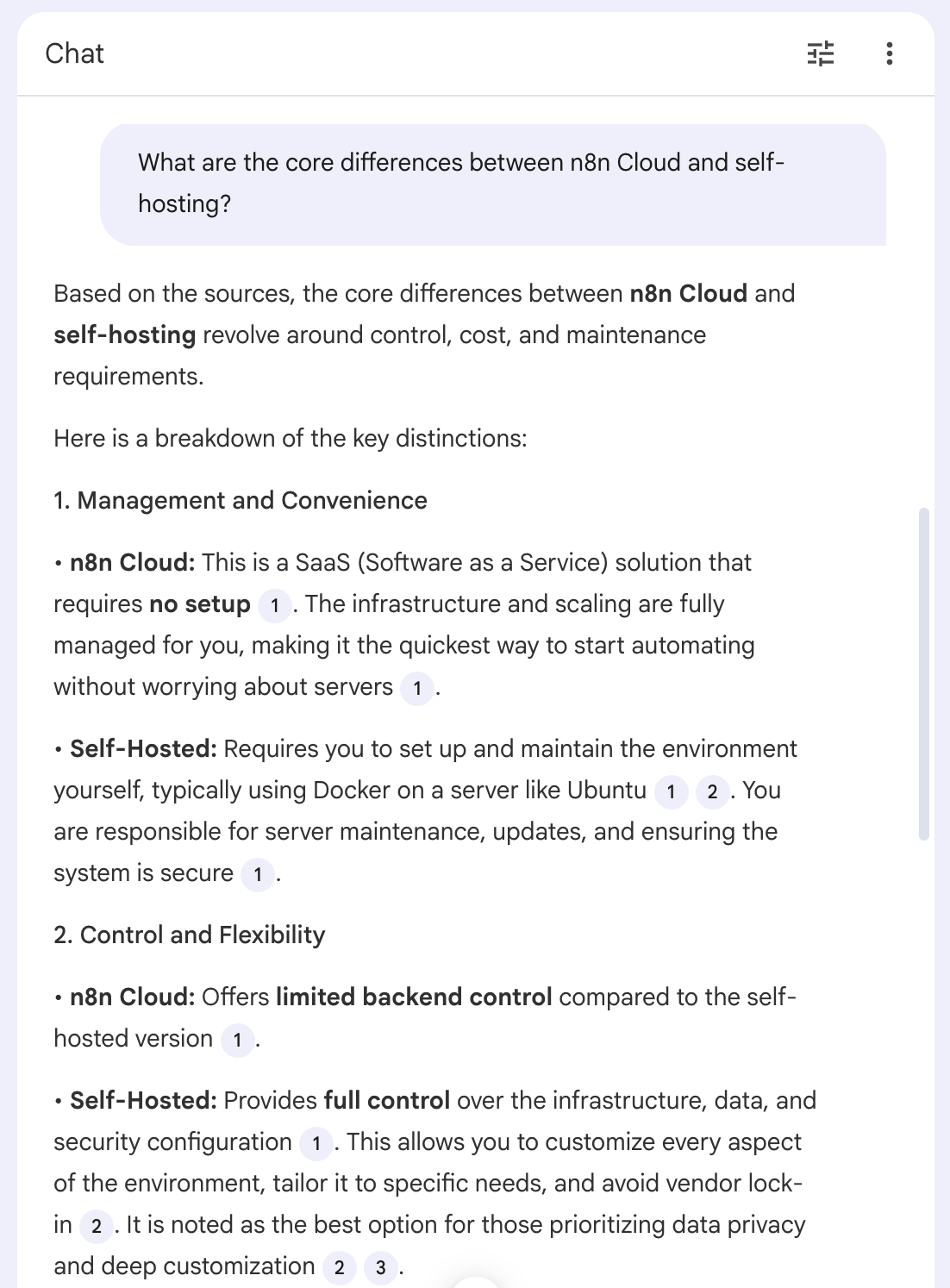
I used one of the suggested prompts (“What are the core differences between n8n Cloud and self-hosting?”) to test retrieval. The answer offers clickable citations to trace answers back to specific data from my sources.
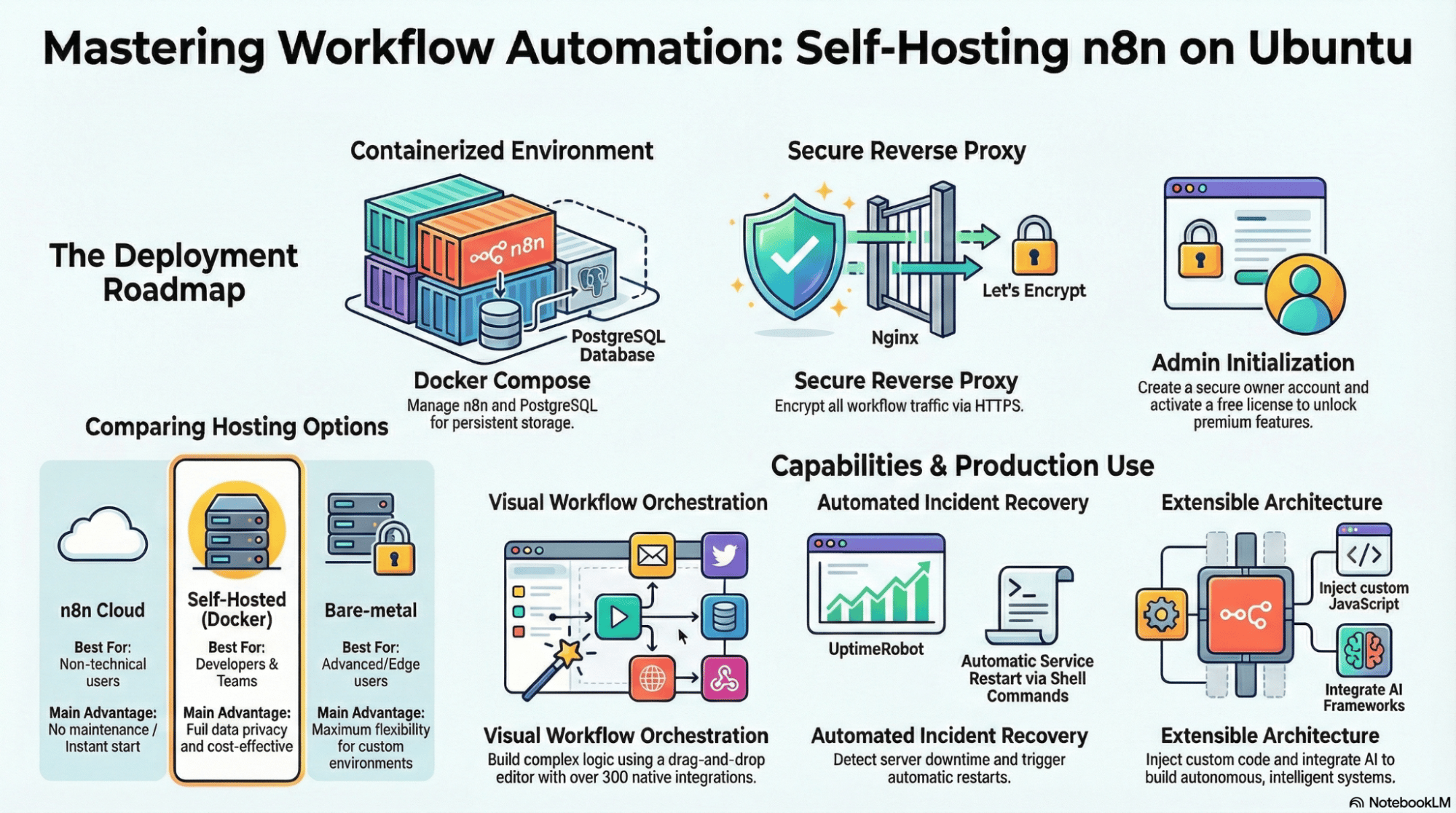
Finally, I tested the Infographic output feature in Studio.
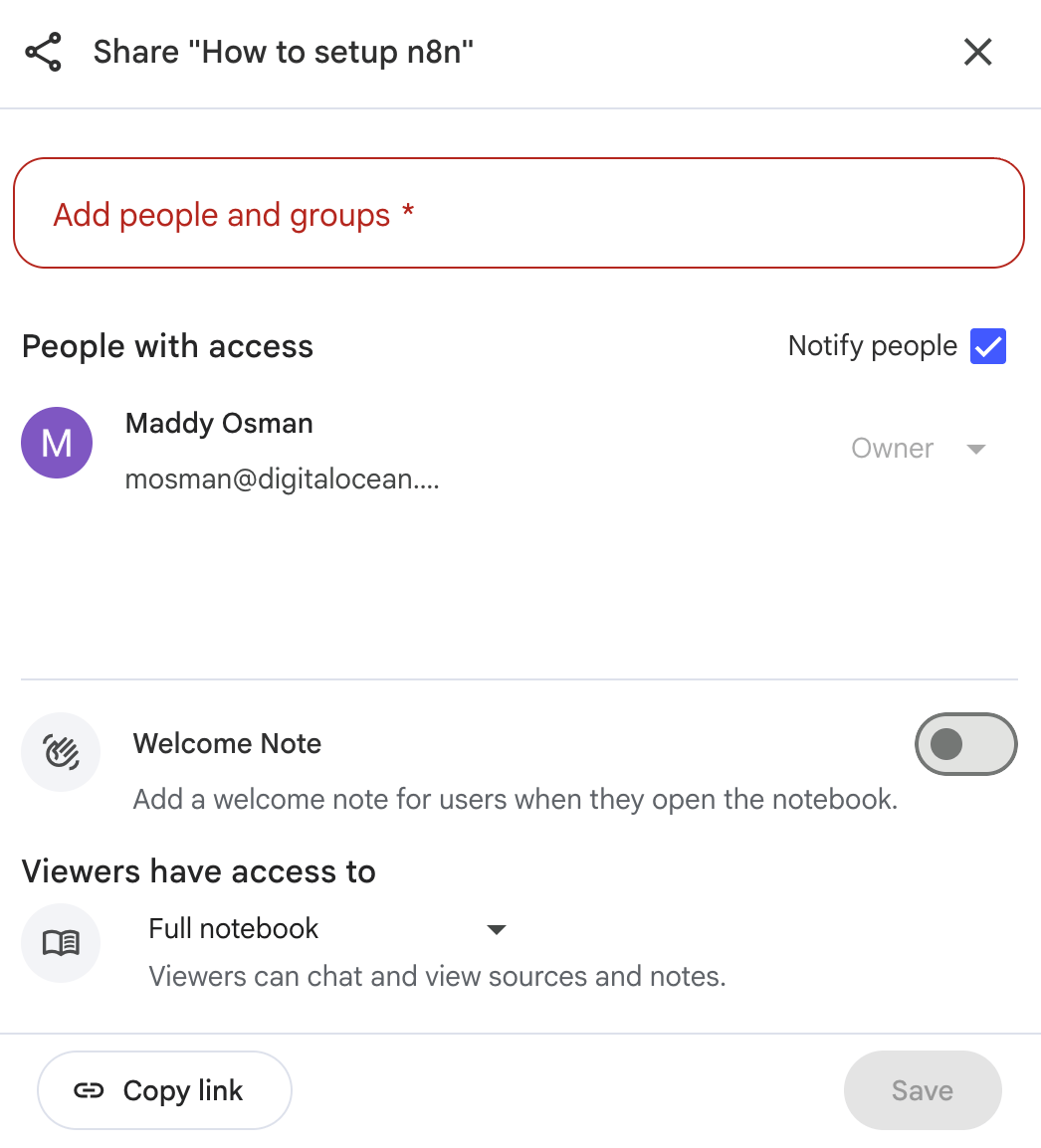
I can also share the notebook with members of my team by clicking the Share button in the top right.
NotebookLM features and use cases
The real power of NotebookLM is how it processes sources as multimedia outputs. Let’s explore how each Studio feature works.
💡 An unexpectedly useful way to use sources in tandem with the AI assistant is to quickly search a YouTube video transcript for relevant details to save time otherwise spent combing through it yourself.
Web search and Deep Research
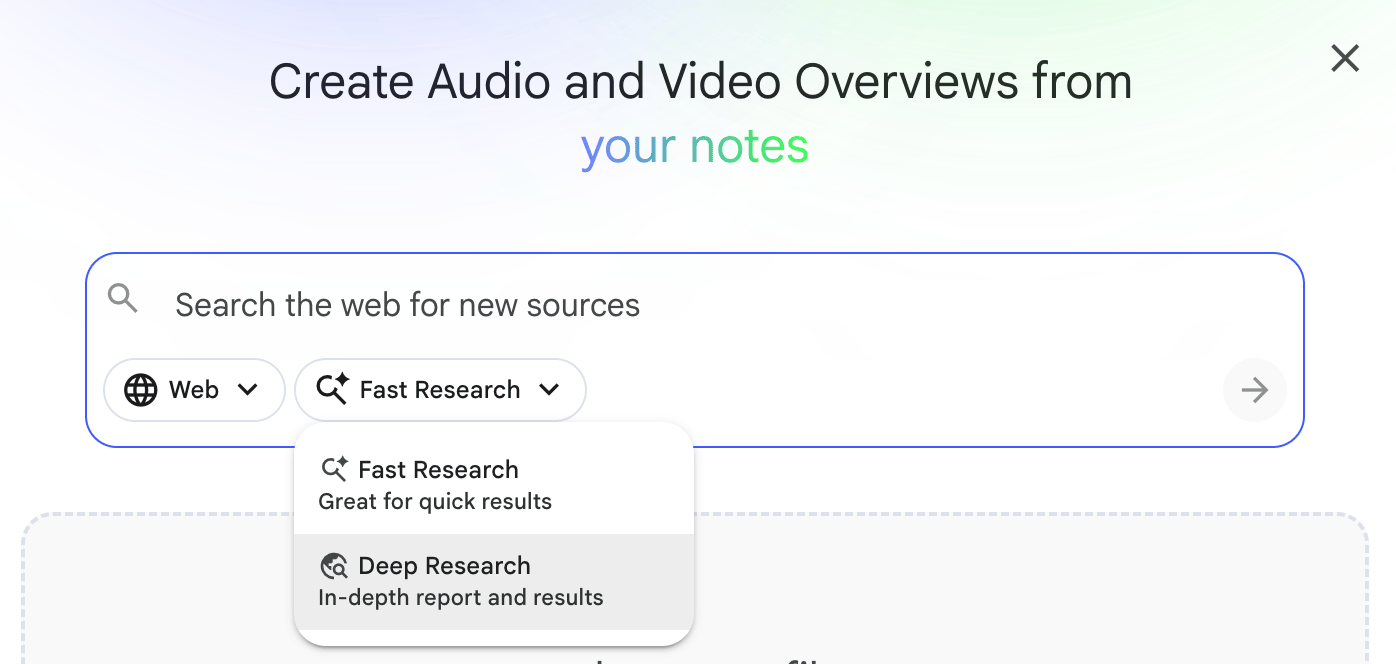
The ability for users to direct web search that can include Deep Research is a relatively new source option. It expands available data from strictly user-provided documents to timely, up-to-date information across the web.
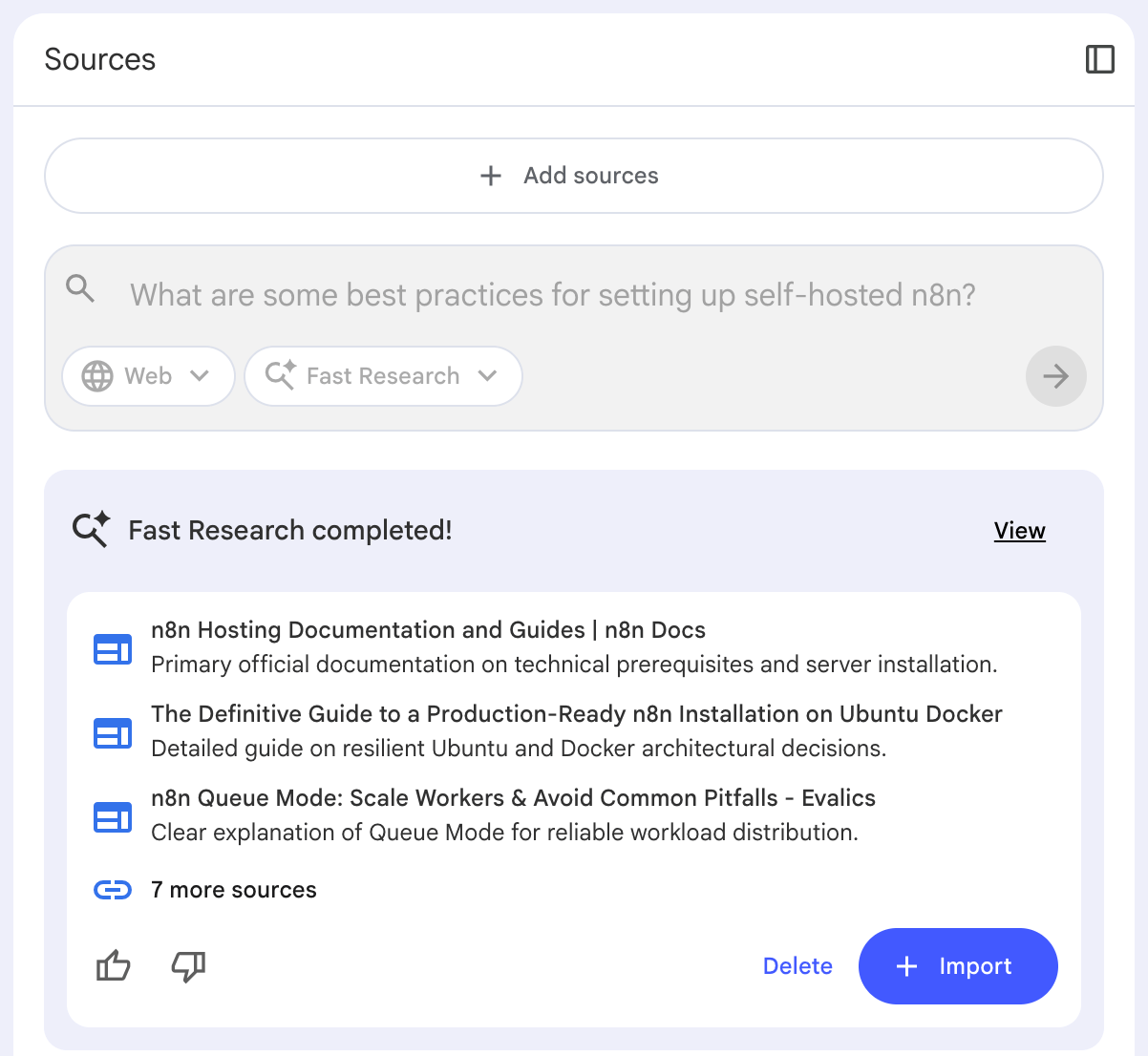
Fast Research curates relevant links to add as sources to your notebook:
Deep Research adds a useful summary that addresses the query, in addition to curated links:
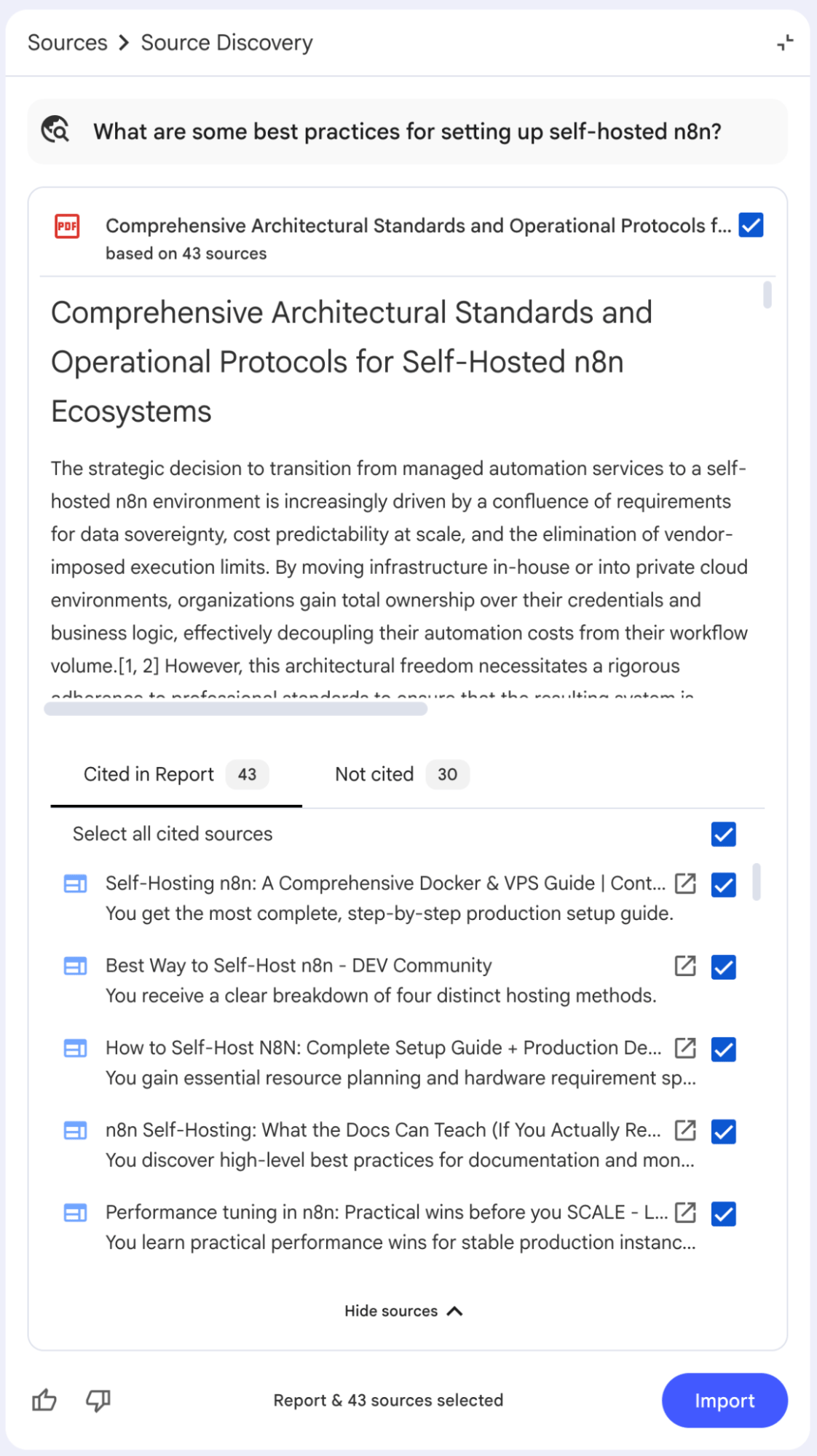
Note that you must import or delete the end results of this web research before you can make further queries. You can also apply Fast Research and Deep Research to the files in your Drive by adjusting the “Web” dropdown, which can be useful if you know you have relevant source documents to add but need help identifying them.
Audio Overview
You’ve probably heard of the NotebookLM podcast feature because it’s a little spooky. One of the reasons NotebookLM has gained notoriety is the uncanny way its robot hosts carry on narrative conversations about seemingly anything. Listen to Mark Schaeffer’s NotebookLM podcast episode for an example.
Auto-generate the Audio Overview or customize it based on a desired format (deep dive, brief, critique, or debate), language, length, and by specifying an answer to the prompt, “What should the AI hosts focus on in this episode?”. Note that NotebookLM suggests topics you can use for ideas to answer this prompt.
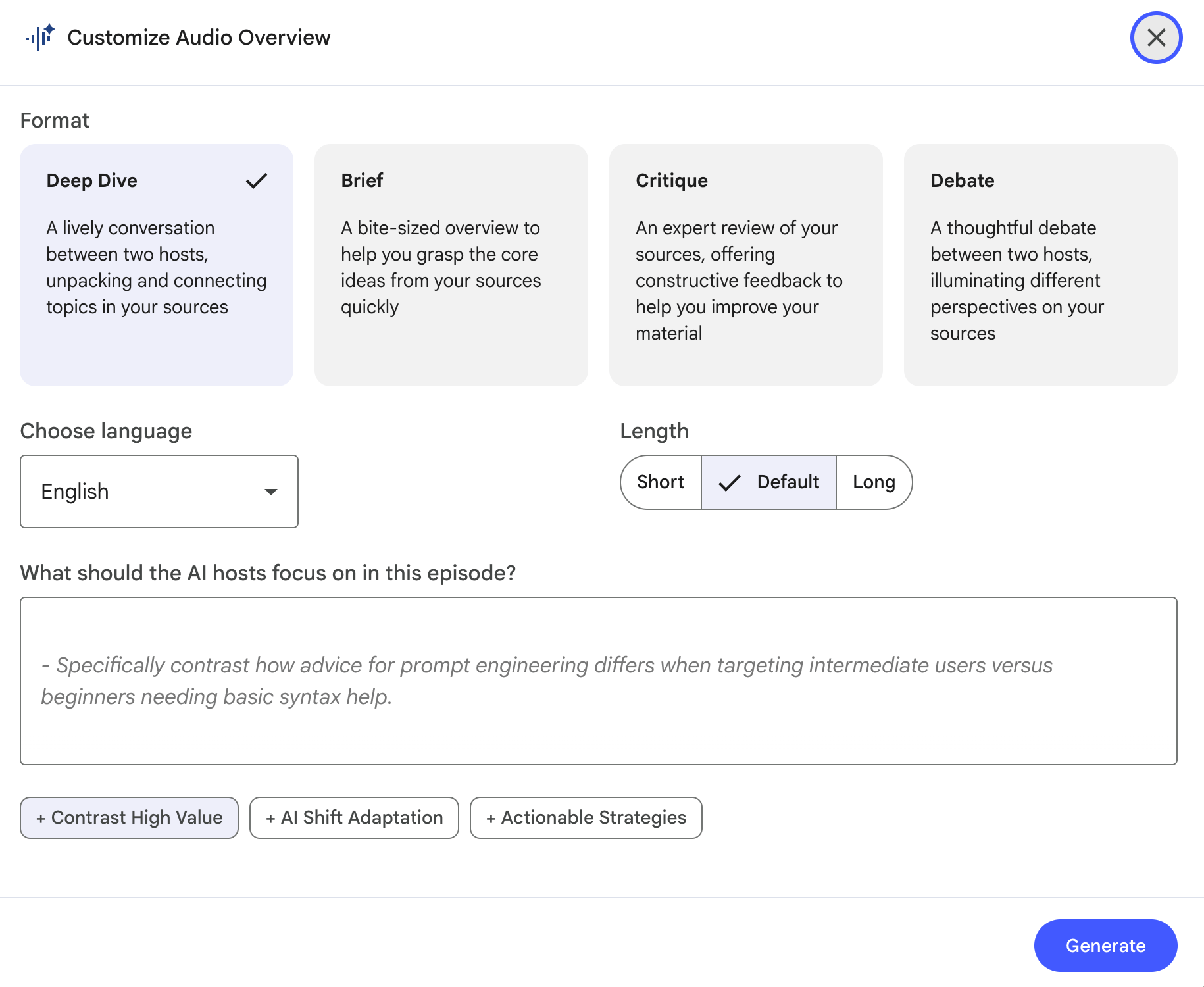
The NotebookLM Audio Overview feature also includes an “Interactive mode” where you can join in and converse with the podcast hosts in real time to direct their discussion or clarify details.
Video Overview
Of all the NotebookLM Studio features, this one will likely take the longest to generate. The Video Overview is similar to Audio Overview, but incorporates visuals alongside audio. Customize the output based on the desired format (explainer or brief), language, visual style (including whiteboard, kawaii, watercolor, or classic), and by filling out the prompt, “What should the AI hosts focus on?”. NotebookLM suggests some ways to answer this prompt based on the context of your sources.
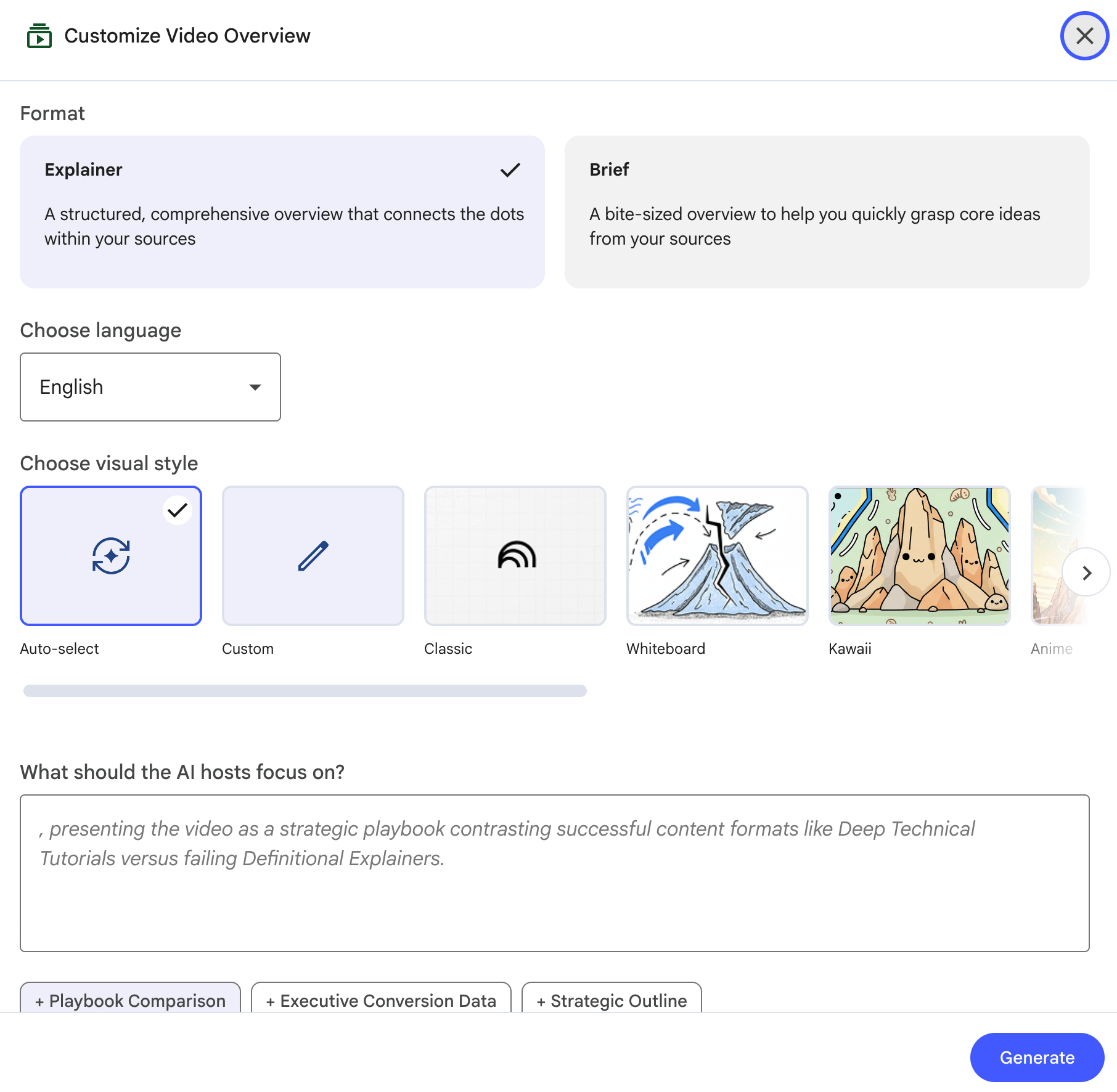
Here’s an example of what this looks like:
Mind Map
The Mind Map feature is a tool that can be equally useful for personal studies or professional research. It generates a visual diagram that organizes high-level information based on the provided sources. It does not currently allow for custom prompting to guide generation beyond the incorporation of specific sources in your notebook.
Data scientist Jean-Christophe Chouinard demonstrates how to use it for LLM optimization, using insights to supplement the content creation process:
Reports
You can create a range of reports in NotebookLM, including standard options like creating a briefing doc, study guide, or blog post, as well as the ability to set your own standards. NotebookLM suggests some ways to answer this prompt based on the context of your sources.
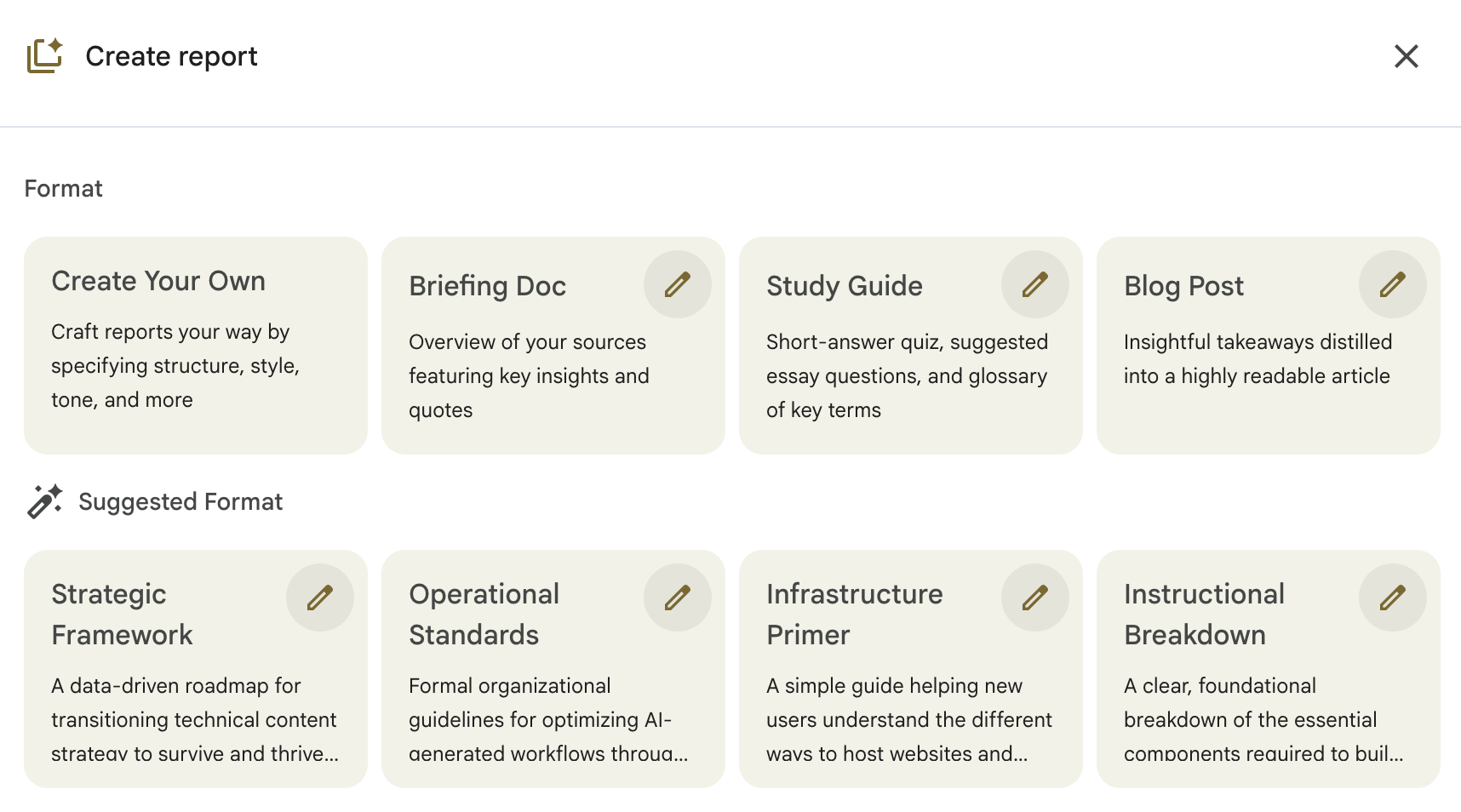
Learn more about this feature:
Flashcards
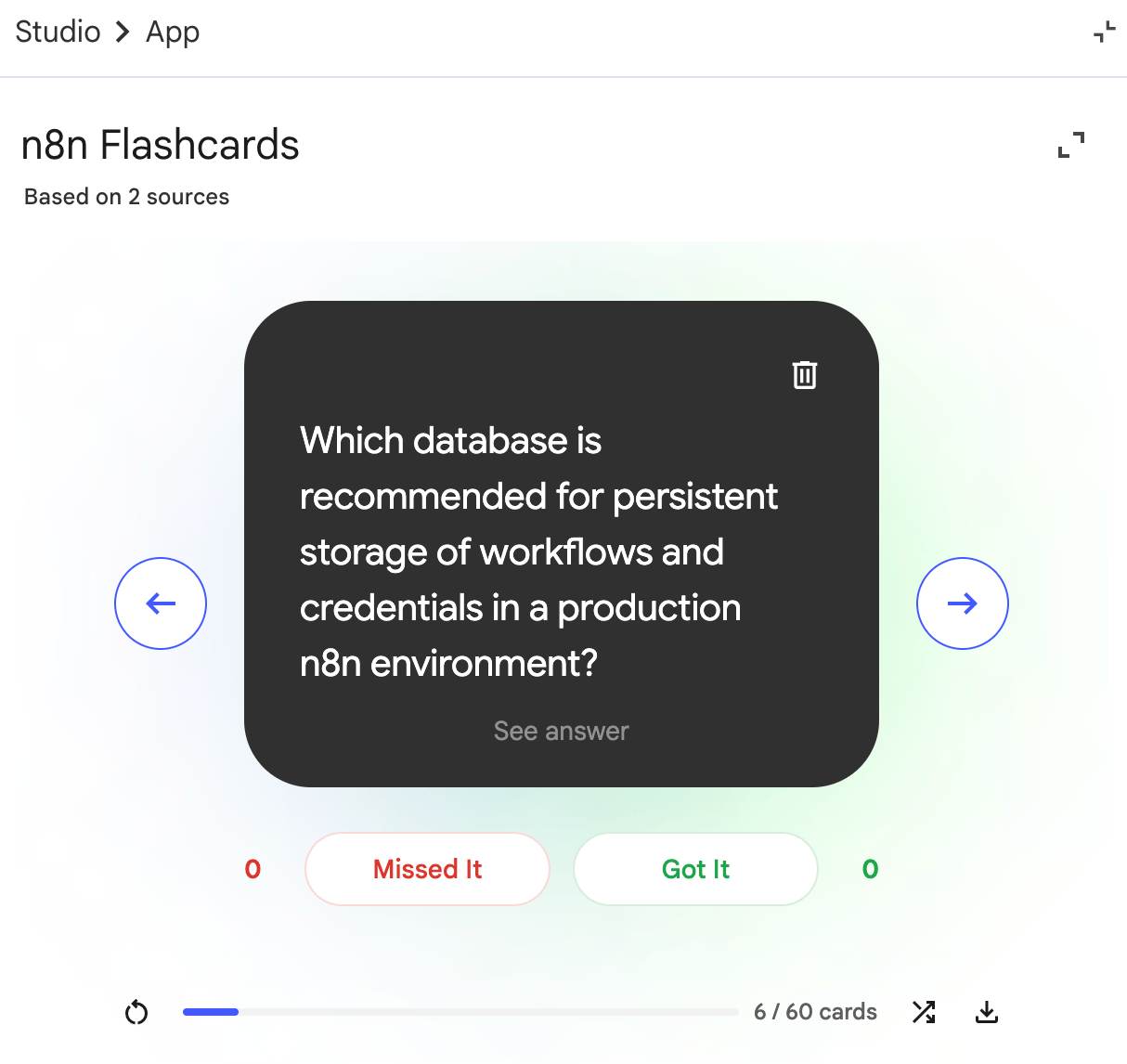
A large number of NotebookLM features are useful for studying, Flashcards standing out amongst them. Auto-generate flashcards or customize the outputs based on the desired number of cards, level of difficulty, and by filling out the prompt, “What should the topic be?”.
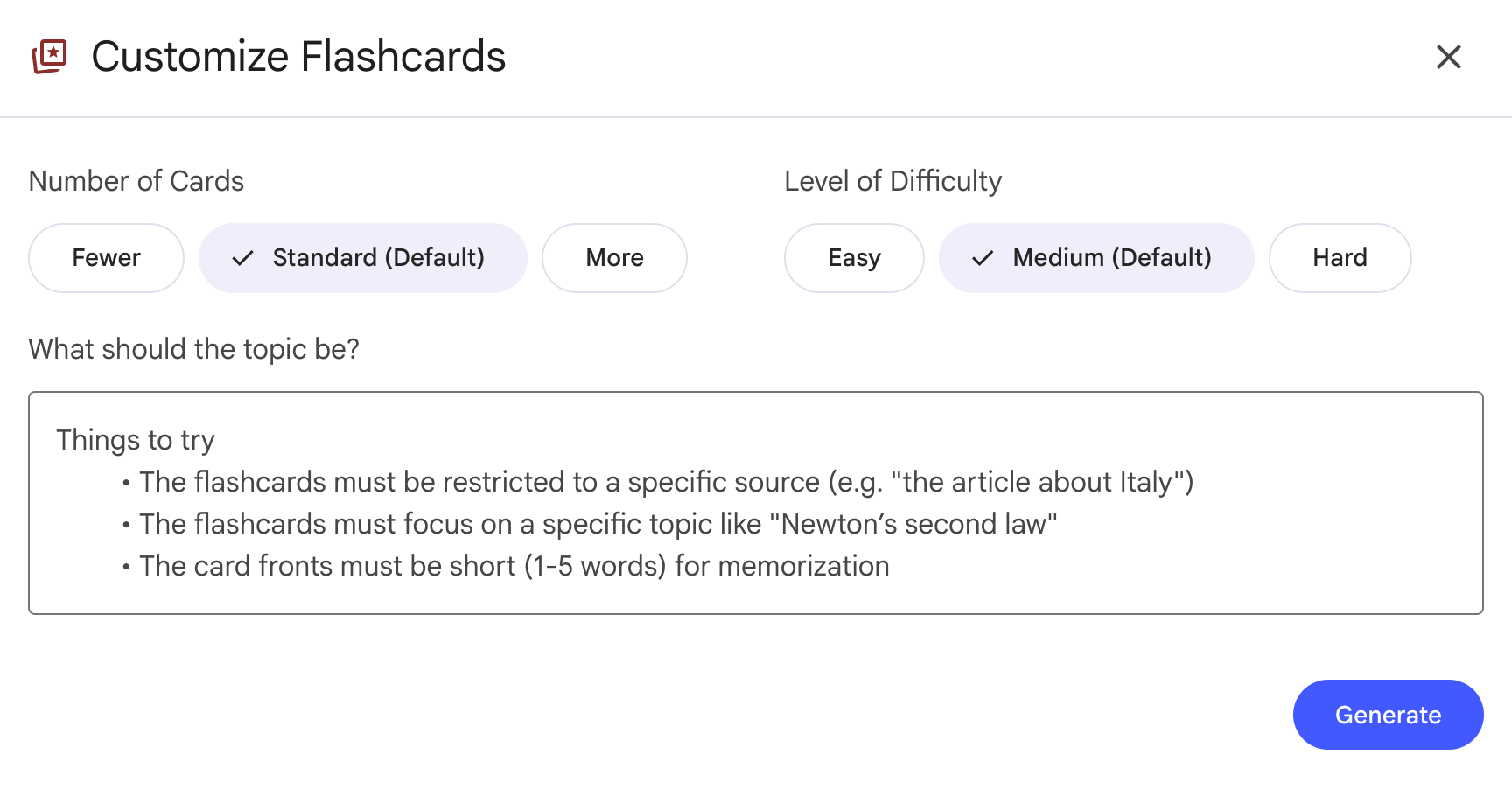
Here’s what the output looks like:
Quiz
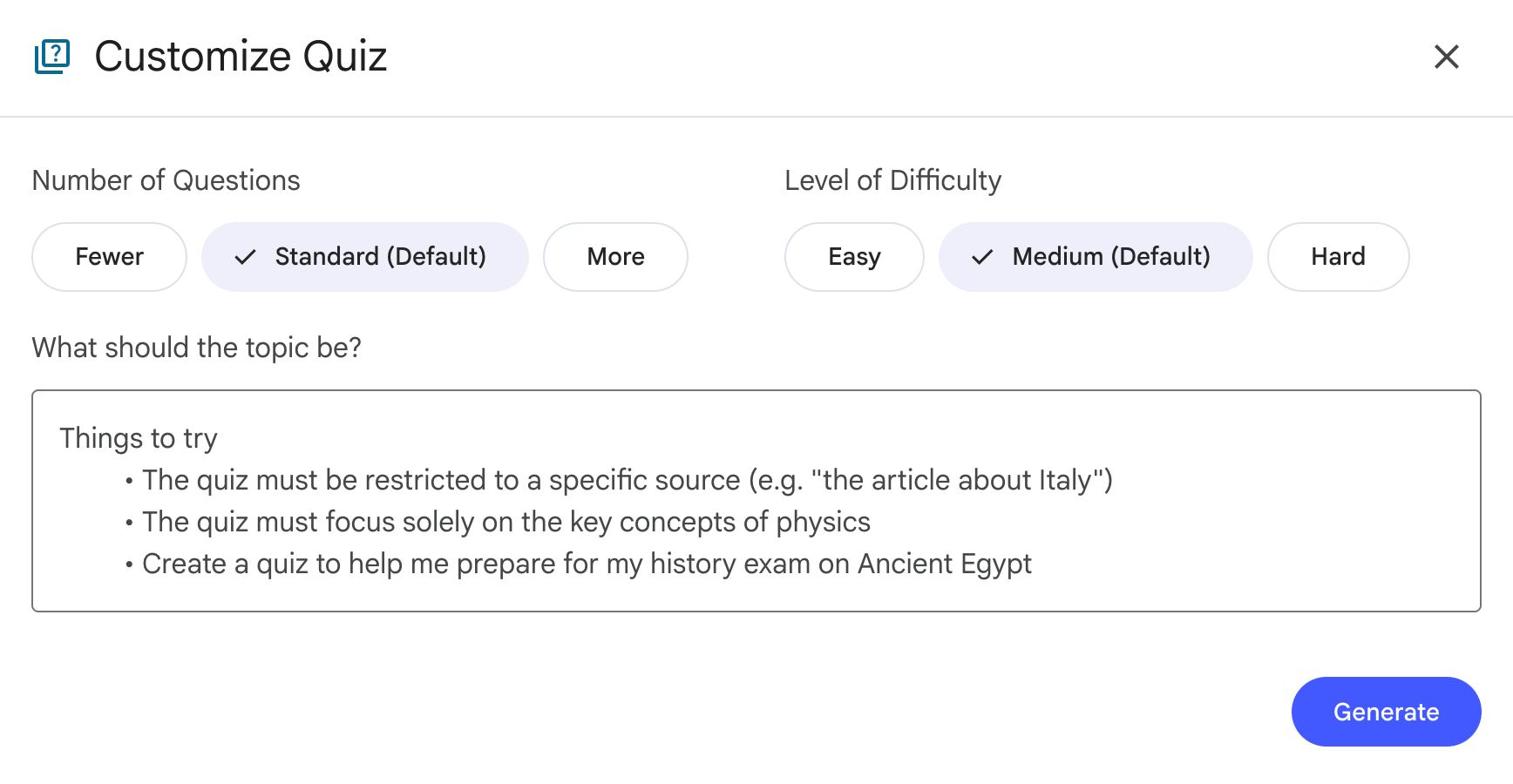
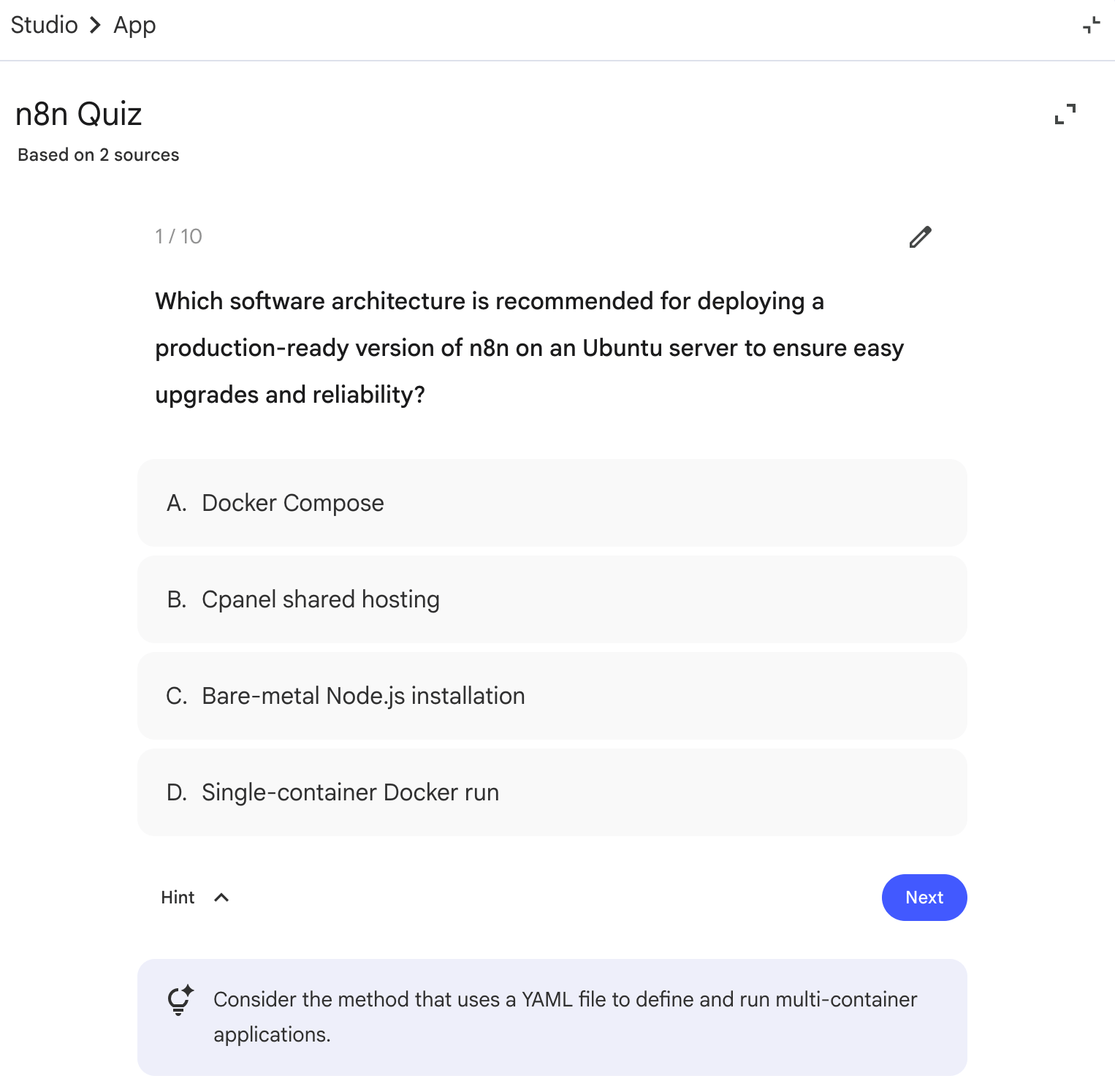
If you’re a student or educator, the Quiz feature is a natural fit for reinforcing lessons. It provides a quick way to generate a knowledge test that’s easily adjusted based on what you want to learn (or reinforce). NotebookLM offers the ability to customize your Quiz based on the number of questions, level of difficulty, and nature of the topic.
Here’s an example Quiz question:
Infographic
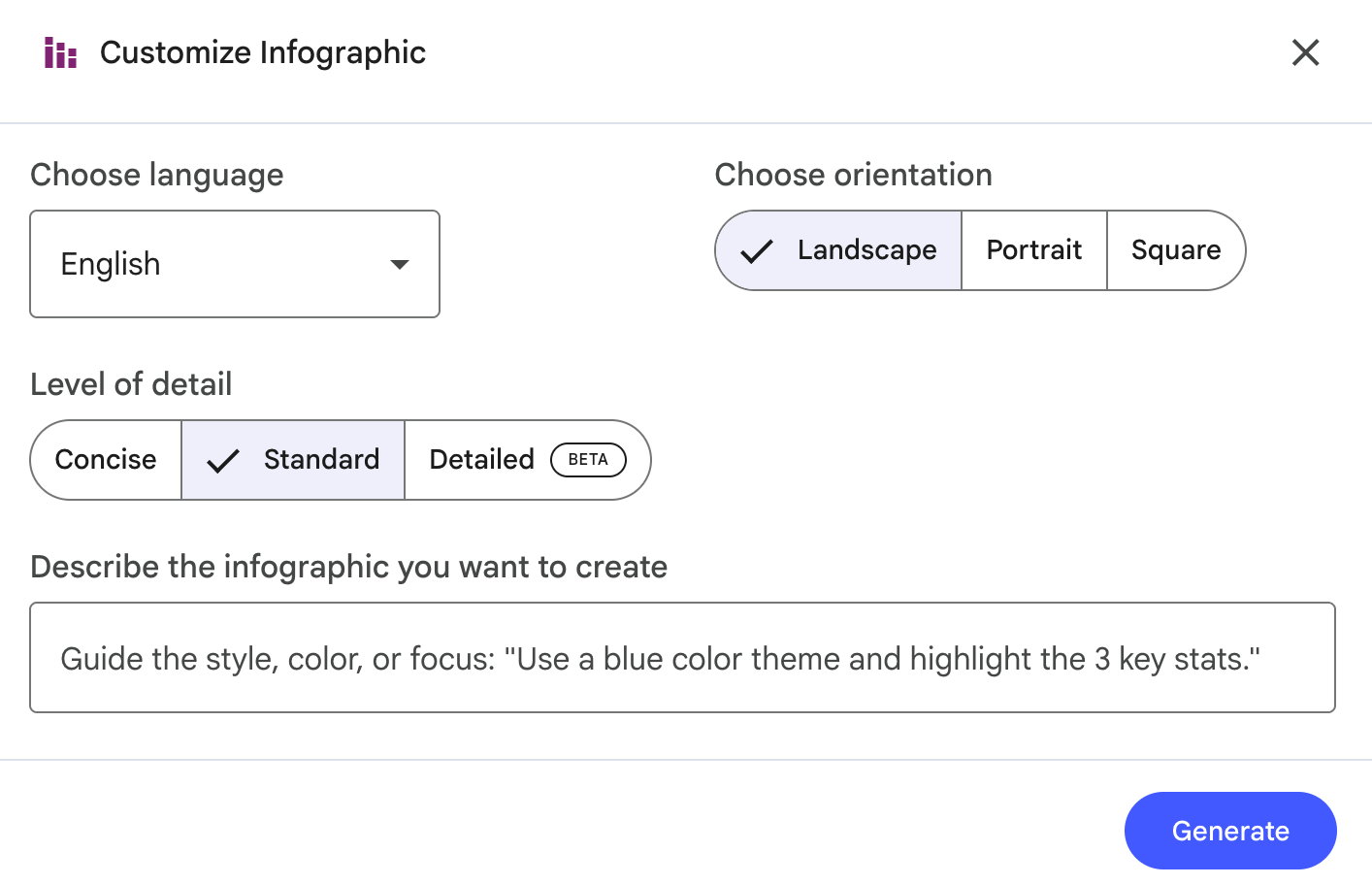
The infographic feature has many excited to reinforce learnings and also create content. As with many other Studio features, you can auto-generate infographics or make specifications before generation. These specifications include the ability to adjust language, orientation, level of detail, and add more context to the prompt of what you want to create.
Educational Technologist Justin Lai uses NotebookLM infographics to summarize and break down concepts in the articles he reads about AI:
Slide Deck
NotebookLM Slide Decks have launched to much fanfare. Both Infographics and Slide Decks incorporate Nano Banana Pro for image generation. You can choose your format (detailed deck versus presenter slides), language, length, and add more details with specific prompts.
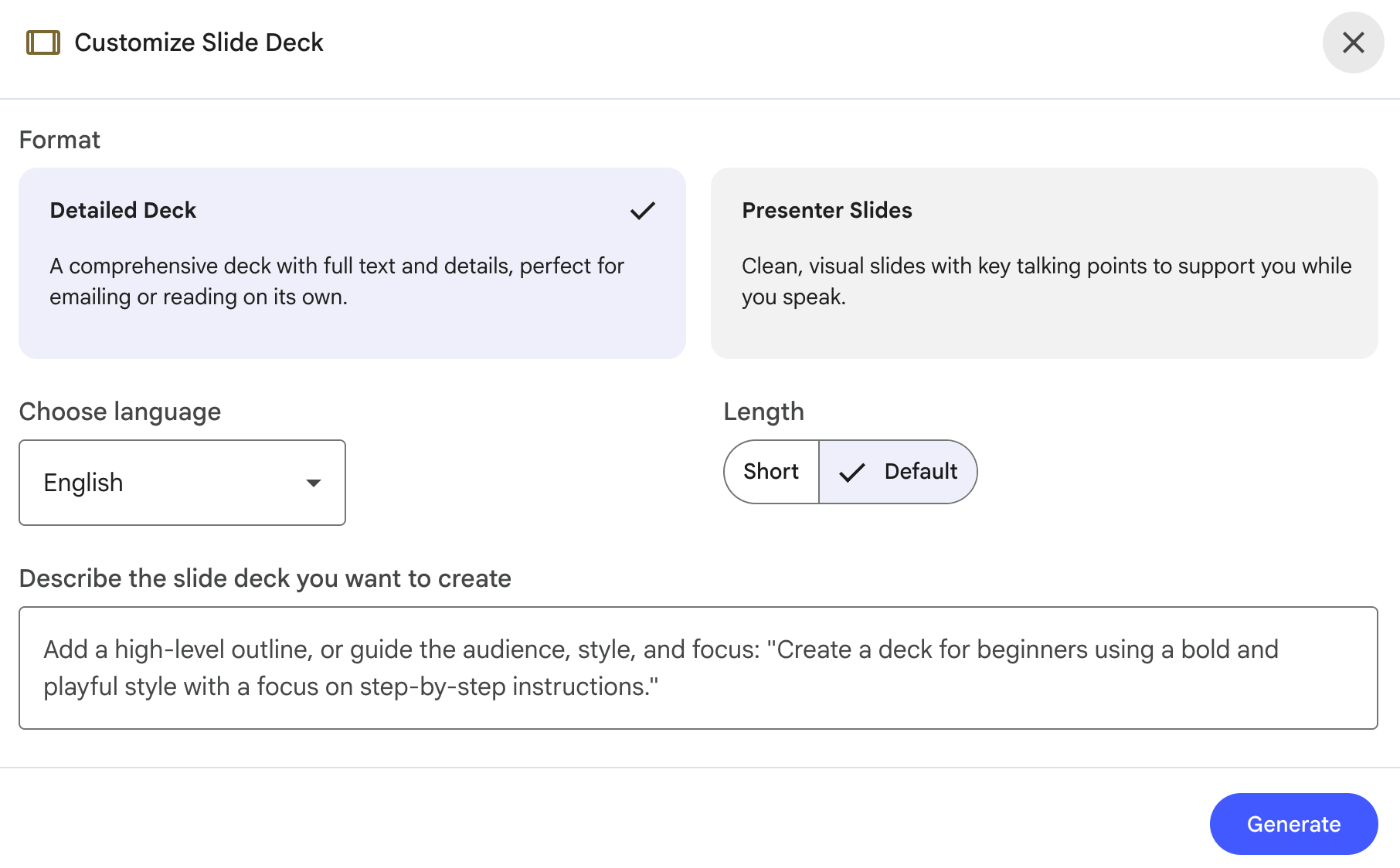
NotebookLM recently shared an update that now makes it possible to export Slide Decks to PPTX with the option to edit slides. The ability to export and edit slides in Google Slides is reportedly coming soon.
NotebookLM shares a fun way to turn handwritten stories into custom kids books:
Data Table
Data Tables give users a useful way to synthesize and organize information in table format. Simply choose a language and craft a prompt to describe the data table you’d like to create.
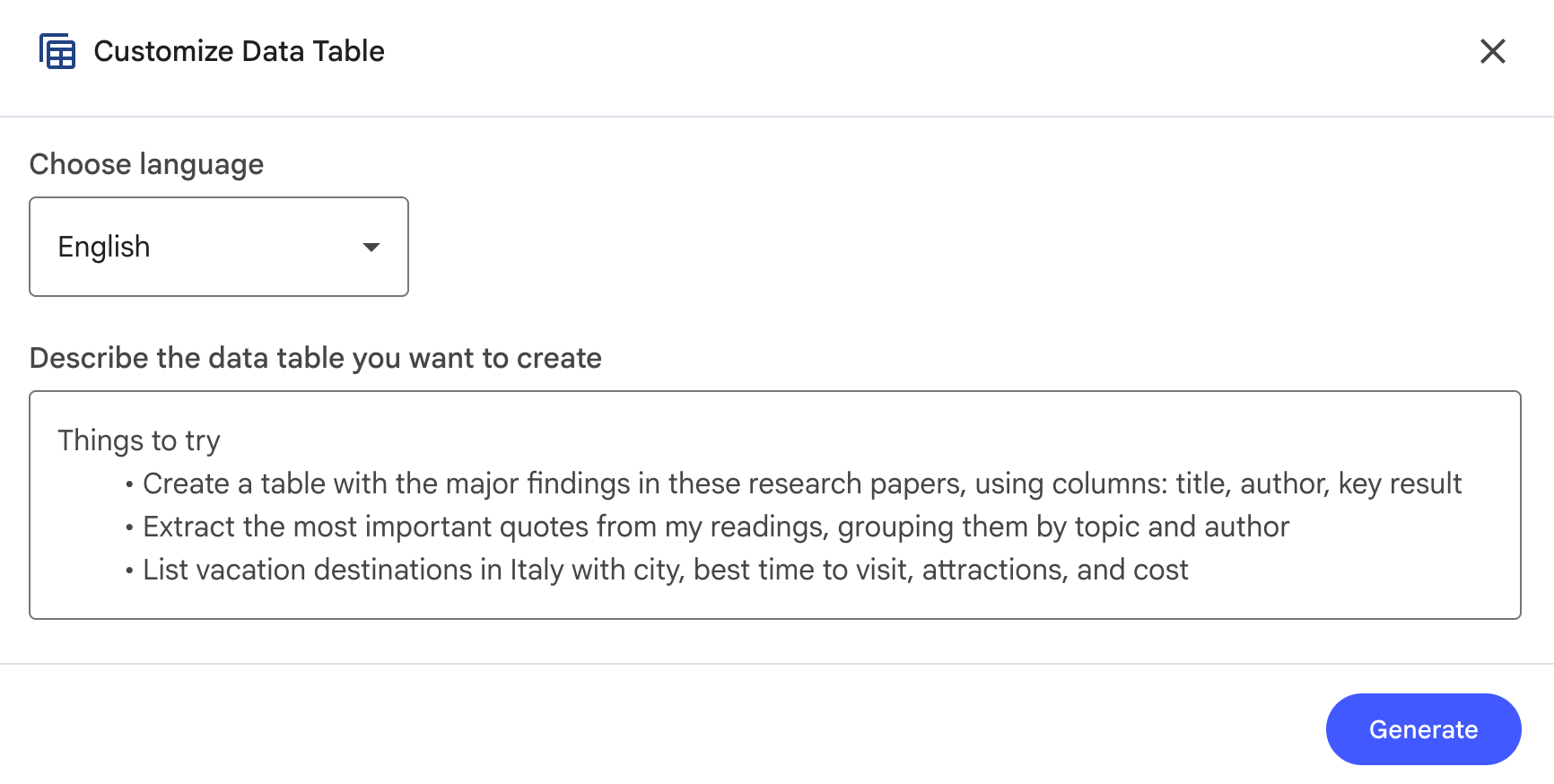
NotebookLM shares various ways to put this feature to use in your work and life:
If you’re also evaluating tools for turning audio into usable text, our guide to AI transcription tools breaks down leading options and what to consider when choosing the right fit for your workflow.
Notebook LM limitations
NotebookLM is a powerful tool but it’s not without limitations. While many of the biggest reasons preventing adoption have been addressed over time—with updates happening on a regular basis—there are still several issues that prevent it from being more widely used:
- Limited integrations: Using NotebookLM notebooks with Gemini is a relatively new feature. Unlike AI assistant tools such as ChatGPT or Claude, NotebookLM doesn’t integrate with external tools for advanced workflow integration. Though its closed system is great for privacy, it’s less useful for productivity.
- Limited AI model access: At this time, you don’t have a choice over which models or even versions of models to use in tandem with NotebookLM—including bringing your own open source AI keys.
- Limited editing capabilities: While most of the Studio features offer the ability to tailor prompts and output specifics, there’s limited ability to make adjustments after generating content assets. For example, you can’t make edits to Video Overviews or Infographics after the initial generation step.
- Slow feature expansion to mobile: New features that launch on the web app can be slow to roll out on mobile, limiting their usefulness until addressed.
Some previous limitations that have since been addressed include:
- Ephemeral chat: Users have always been able to save chats as notes but NotebookLM now also saves chat history.
- File upload limitations: NotebookLM recently launched an update that expands source file types to images (with OCR) and CSV files.
- Chat character limit: Past prompting was limited by character count, but this limitation has been greatly expanded recently, from 500 to 10,000 characters.
Join the NotebookLM Discord server to ask for help or suggest features.
Notebook LM best practices
NotebookLM packs a surprising amount of functionality into what looks like a simple notebook—from podcast-style Audio Overviews to AI-generated quizzes. Here are some expert tips for getting the most out of this AI tool:
- Create focused notebooks: Take advantage of the large number of notebooks included at each tier and focus each on a specific topic. For example, if you’re building an API integration, keep your endpoint documentation in one notebook and your error-handling references in another. You’ll get much sharper answers than dumping everything into one place.
- Curate included sources: NotebookLM allows you to add numerous sources, so take advantage of this by providing a lot of context. Add multiple sources from different angles and media about the same topic for richer retrieval responses.
- Write thoughtful prompts: Use prompt engineering best practices to structure your asks to NotebookLM and get the best answers to your questions.
- Test different Studio features: Try getting output in different ways by testing out and getting familiar with using various Studio features.
- Verify outputs: Trace details back to the source with included citations. NotebookLM is less likely to hallucinate than other AI tools, but that doesn’t mean it never happens.
- Get inspiration from others: Check out NotebookLM’s featured notebooks for curated ideas to inspire your own approach.
If you’re building web apps that incorporate AI—whether for summarization, search, or user-facing assistants—our guide to AI tools for web development explores frameworks and platforms that help you move from experimentation to production-ready features.
NotebookLM alternatives
If you’re exploring NotebookLM alternatives, it likely means you want more flexibility than a closed, source-only research tool can provide. Some platforms focus on citation-backed answers from your own documents, while others emphasize broader web search, real-time data, or more conversational exploration. A few relevant options include:
- Perplexity: Unlike NotebookLM’s focus on transforming private documents into multimedia formats, Perplexity is a web-first answer engine built for real-time discovery across the live internet. While both tools now offer web search and deep research capabilities, Perplexity provides more flexibility by allowing users to toggle between different AI models. It is the ideal choice for gathering broad external intelligence quickly, whereas NotebookLM remains superior for strictly source-grounded analysis and synthesizing complex, private document sets.
- Elicit: Ideal for academic research, Elicit’s Paper Chat feature works similarly to NotebookLM by allowing you to upload research papers and generate source-grounded summaries. It specializes in extracting data from clinical trials and scholarly articles to automate systematic reviews.
- You.com: A strong alternative for business and enterprise users, You.com offers “Private RAG”. This allows organizations to securely connect internal data sources—like Google Drive, SharePoint, and Salesforce—to combine private knowledge with web search in a secure environment.
- ChatGPT: ChatGPT can integrate directly with Google Drive and Microsoft OneDrive, allowing it to analyze your files alongside real-time web data. It also offers a wider suite of creative tools included in its paid subscriptions, such as DALL-E for image generation, advanced voice mode for brainstorming, and custom GPTs.
Our guide to Perplexity alternatives breaks down tools built for different research styles—so you can choose the AI assistant that best fits how your team works.
What is NotebookLM FAQ
What is NotebookLM used for?
NotebookLM is an AI-powered research assistant designed to help you organize, summarize, and synthesize information from your own uploaded documents. Users frequently use it to generate study guides, podcasts, and reports, or to quickly query complex materials like legal documents and academic papers. Its “Audio Overview” feature is particularly popular for converting dry text into engaging, conversational discussions between AI hosts.
Is NotebookLM free to use?
Yes, Google offers a robust free tier that includes access to all core Studio features, though it has daily and monthly usage limits. For power users, paid plans like Plus (~$14/month) and Pro ($19.99/month) provide expanded daily chat queries and higher limits for sources and notebooks.
What’s the difference between NotebookLM vs ChatGPT?
Unlike ChatGPT, which draws from a broad pre-trained dataset of the internet, NotebookLM is grounded strictly in the exclusive sources you provide. This closed retrieval augmented generation (RAG) system significantly reduces hallucinations and ensures every response is backed by specific citations from your documents.
Does NotebookLM use your data to train models?
For individual users, your data is generally not used for training unless you explicitly choose to share feedback with Google. For organizations and schools using Enterprise versions, data remains strictly private within their environment and is not used for model training.
Is NotebookLM good for developers?
Developers use NotebookLM to manage technical documentation, troubleshoot code logic, and organize research for new projects. By uploading entire codebases or API docs, developers can treat the tool as a junior developer teammate that stays grounded in their specific logic to save time on manual cross-referencing.
Build with DigitalOcean’s Gradient™ Platform
DigitalOcean Gradient Platform makes it easier to build and deploy AI agents without managing complex infrastructure. Build custom, fully-managed agents backed by the world’s most powerful LLMs from Anthropic, DeepSeek, Meta, Mistral, and OpenAI. From customer-facing chatbots to complex, multi-agent workflows, integrate agentic AI with your application in hours with transparent, usage-based billing and no infrastructure management required.
Key features:
- Serverless inference with leading LLMs and simple API integration
- RAG workflows with knowledge bases for fine-tuned retrieval
- Function calling capabilities for real-time information access
- Multi-agent crews and agent routing for complex tasks
- Guardrails for content moderation and sensitive data detection
- Embeddable chatbot snippets for easy website integration
- Versioning and rollback capabilities for safe experimentation
Get started with DigitalOcean Gradient Platform for access to everything you need to build, run, and manage the next big thing.
Any references to third-party companies, trademarks, or logos in this document are for informational purposes only and do not imply any affiliation with, sponsorship by, or endorsement of those third parties.
About the author

Maddy Osman is a Senior Content Marketing Manager at DigitalOcean.
Start building today
From GPU-powered inference and Kubernetes to managed databases and storage, get everything you need to build, scale, and deploy intelligent applications.
